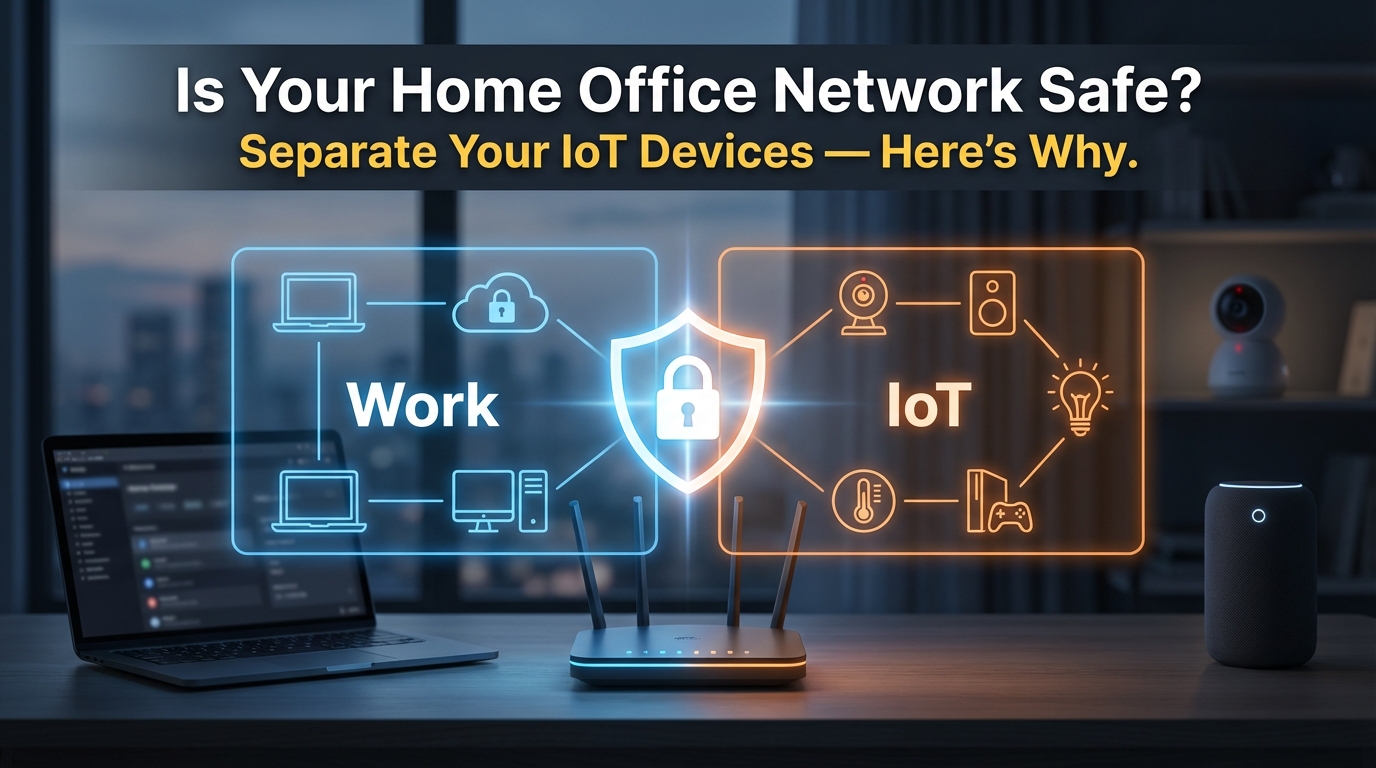
If you’ve ever set up a home office and wondered whether your smart thermostat or security camera sharing the same network as your work laptop is actually a problem — it is. Not in a vague, theoretical way, but in a very concrete, documented way that network professionals deal with regularly.
I’m Donna Parker, and I’ve spent years writing about and researching office network infrastructure. The more time I’ve spent digging into how home networks are actually built versus how they should be built, the more I’ve come to appreciate how much the average setup leaves exposed. Most people assume their router is doing the heavy lifting. It’s not.
What an IoT VLAN Actually Is (And Why It Matters)
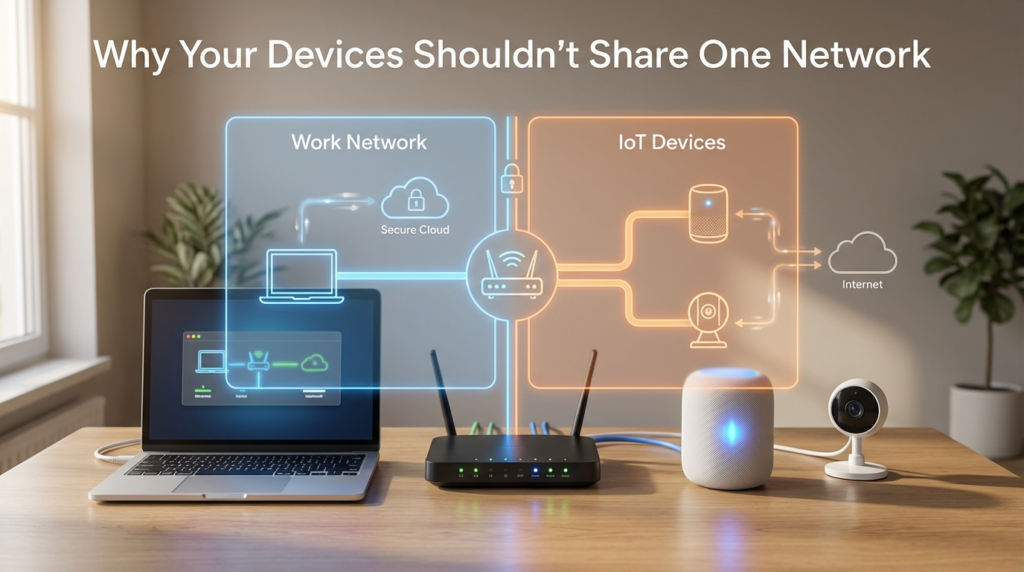
A VLAN — Virtual Local Area Network — lets you divide one physical network into multiple isolated segments. Each segment behaves as if it has its own dedicated switch, even though the underlying hardware is shared. When you put your IoT devices on their own VLAN, they can still reach the internet, but they cannot directly communicate with your work laptop, your NAS drive, or any other device on a separate VLAN.
Here’s the thing most guides skip: this isn’t just about privacy. It’s about containing the blast radius when something goes wrong. IoT devices — smart bulbs, cameras, thermostats, voice assistants — are notoriously under-patched. Manufacturers push out a product, and firmware updates slow to a trickle after the first year. If one of those devices gets compromised, an attacker on your flat home network can pivot laterally to everything else. A VLAN stops that pivot cold.
CISA’s Project Upskill guidance specifically addresses this. In Module 5: Securing Your Home Wi-Fi, CISA recommends segmenting IoT devices away from primary work and personal devices — not as an advanced step, but as a baseline security measure for anyone working from home.
The Critical Difference Between Guest Networks and True VLANs
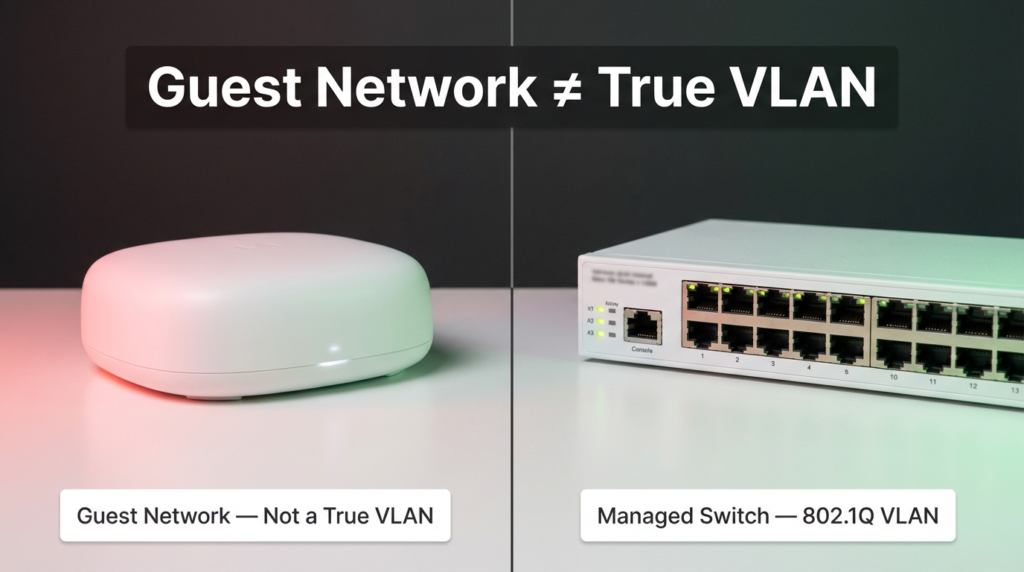
This is where a lot of home office setups fall apart. Many routers — even expensive mesh systems — advertise a “Guest Network” and people assume that’s the same as VLAN isolation. It isn’t.
A guest network is a simplified, firmware-level feature that creates a separate SSID with basic client isolation. It prevents guest devices from seeing your main network devices, but it’s implemented in software on the router, not enforced at the hardware switching level. There’s no 802.1Q tagging, no granular traffic rules, and usually no way to apply firewall policies between segments.
A true VLAN requires 802.1Q tagging support — a standard that allows network frames to carry a VLAN ID tag as they travel between your switch, router, and access points. Without this, your “segmentation” is cosmetic. Any device that can be made to behave as a trunk port could theoretically bypass it.
| Feature | Guest Network | True VLAN (802.1Q) |
|---|---|---|
| Separate SSID | ✅ Yes | ✅ Yes |
| Hardware-level isolation | ❌ No | ✅ Yes |
| 802.1Q tag support | ❌ No | ✅ Required |
| Firewall rules between segments | ❌ Rarely | ✅ Yes |
| mDNS/AirPrint cross-VLAN control | ❌ No | ✅ With repeater |
| Works on consumer mesh routers | ✅ Yes | ❌ Usually not |
| Works on managed switches | N/A | ✅ Yes |
If your router doesn’t support 802.1Q tagging, you cannot build a real VLAN. Full stop.
VLAN Tagging Compatibility: Managed Switches vs. Consumer Mesh Routers
Not all networking hardware handles VLANs the same way. This is one of the most common points of confusion when people try to set this up at home.
Managed switches — brands like Netgear’s GS series, TP-Link’s TL-SG series (smart managed), or Ubiquiti’s UniFi line — support 802.1Q tagging natively. You can define VLAN IDs, assign ports as access or trunk ports, and control exactly which traffic flows where. This is the foundation of any real segmented network.
Consumer mesh routers — Eero, Google Nest WiFi, Orbi, and similar — are a different story. Most do not support true VLANs at all. Some higher-end models have added VLAN support in recent firmware updates, but it’s often limited, poorly documented, or restricted to specific tiers of the product line.
| Hardware Type | 802.1Q VLAN Support | Typical Use Case | Example Brands |
|---|---|---|---|
| Managed switch | ✅ Full support | Core of any VLAN setup | Ubiquiti, Netgear, TP-Link |
| Smart/web-managed switch | ✅ Partial support | Budget VLAN setups | TP-Link TL-SG108E, Netgear GS308E |
| Consumer mesh router | ❌ Usually none | Basic home networks | Eero, Google Nest, Orbi |
| Prosumer router (pfSense, OPNsense) | ✅ Full support | Advanced home/office setups | Protectli, custom builds |
| ISP-provided modem/router combo | ❌ Rarely | Internet connection only | Varies by ISP |
If you’re running a home office and want real VLAN segmentation, the practical path is a managed or smart-managed switch paired with a router that supports VLAN-aware configurations. The Eero Pro 6E, for example, does not currently support 802.1Q on its LAN ports — so even if your ISP gives you one, you’ll need additional hardware to build proper VLANs.
The Hidden Problem: Printer Discovery Breaks When You Isolate IoT Devices
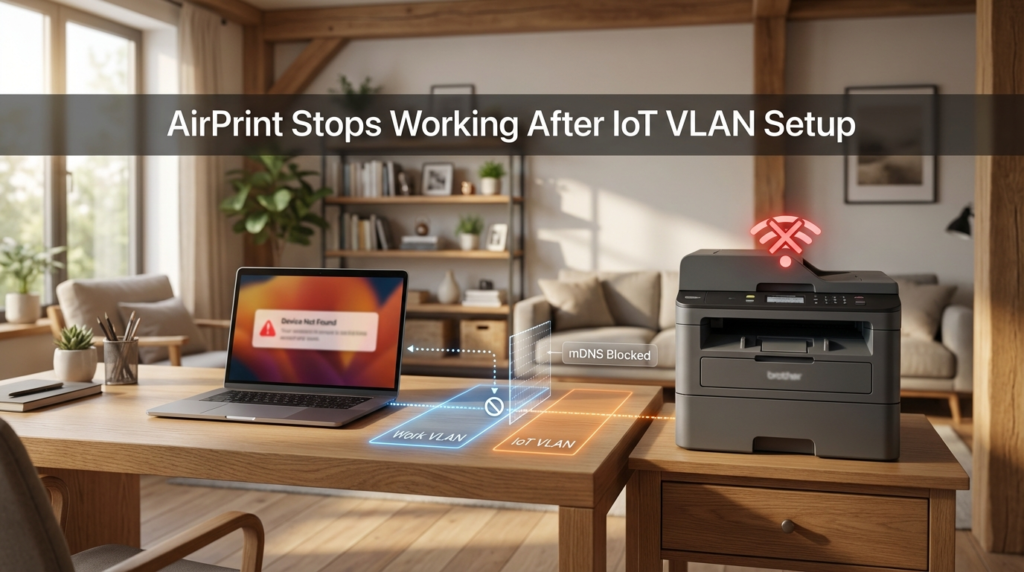
Here’s a real issue that catches people off guard after they’ve done the work of setting up IoT VLANs: their printer disappears.
AirPrint, Google Cloud Print alternatives, and most zero-configuration discovery protocols — including those used by smart TVs, Chromecast, and Sonos — rely on mDNS (multicast DNS). This is the protocol that lets your laptop say “hey, is there a printer on this network?” and get an answer without any manual configuration.
The problem is that mDNS is a multicast protocol. By design, multicast traffic does not cross VLAN boundaries. When your laptop is on your work VLAN and your printer is on your IoT VLAN, the multicast packets simply stop at the VLAN boundary. Your laptop never hears the printer announce itself. From your laptop’s perspective, the printer doesn’t exist.
This is not a bug in your setup — it’s expected behavior. But it’s also genuinely frustrating if you haven’t planned for it.
The fix is an mDNS repeater (also called an mDNS proxy or Avahi daemon in Linux-based setups). This is a service — running on your router or a small server — that listens for mDNS announcements on each VLAN and forwards them to the others. It essentially bridges the discovery traffic without actually bridging the security boundary.
Several routers support this natively:
- OPNsense and pfSense include Avahi packages that handle cross-VLAN mDNS
- Ubiquiti UniFi has a built-in mDNS repeater in its controller settings
- OpenWRT supports it via the
avahi-daemonpackage
If your router doesn’t support mDNS repeating, you can run a small Raspberry Pi or similar device as an Avahi daemon to handle it. It’s a few hours of work, but once it’s running, AirPrint and discovery protocols work normally across your segmented network.
What you should not do is “solve” the problem by just moving the printer back to your main network. That defeats the purpose of the segmentation.
Setting Up an IoT VLAN: What the Process Actually Looks Like
The process varies depending on your hardware, but the general steps follow a consistent pattern. Here’s how it typically works on a managed switch with a VLAN-capable router:
Step 1 — Define your VLANs on the router. Assign VLAN IDs. A common convention is VLAN 10 for trusted devices, VLAN 20 for IoT, VLAN 30 for guest. These numbers are arbitrary but should be documented.
Step 2 — Configure trunk ports. The port connecting your router to your managed switch needs to carry tagged traffic for all VLANs. This is a trunk port. Every VLAN tag passes through it.
Step 3 — Assign access ports on the switch. Ports where individual devices plug in are access ports. They’re assigned to one VLAN. A device plugged into an IoT-tagged port gets untagged frames for VLAN 20, and that’s all it sees.
Step 4 — Configure wireless SSIDs. If you have a VLAN-aware access point, you can map SSIDs to VLANs. “HomeNetwork” maps to VLAN 10, “IoT-Devices” maps to VLAN 20. Devices connecting to the IoT SSID are automatically in the isolated segment.
Step 5 — Set firewall rules. Block traffic from VLAN 20 to VLAN 10. Allow VLAN 20 to reach the internet. This is where you enforce the actual isolation.
Step 6 — Enable mDNS repeating if you need AirPrint or similar discovery to work across VLANs.
What Devices Should Go on the IoT VLAN
Not everything needs to be isolated, but most smart home devices do. A practical breakdown:
Put on IoT VLAN:
- Smart speakers (Alexa, Google Home)
- Security cameras and video doorbells
- Smart TVs
- Smart plugs, bulbs, thermostats
- Game consoles (optional, but reasonable)
- Network-connected appliances
Keep on main/trusted network:
- Work laptops and desktops
- Personal computers
- Phones used for work
- NAS drives with sensitive data
Printers sit in an awkward middle ground. If you need AirPrint from your work VLAN, you’ll either need the mDNS repeater approach or a printer with a static IP that you can add manually as a TCP/IP printer — bypassing discovery entirely.
Frequently Asked Questions
Does a VLAN slow down my internet? No. VLANs operate at the switching layer and don’t add meaningful latency. The overhead is negligible on modern hardware.
Can IoT devices on a separate VLAN still reach the internet? Yes — that’s by design. The firewall rules block inter-VLAN traffic while allowing each VLAN to route outbound to the internet normally.
Is a guest network good enough for basic IoT isolation? For a casual home setup, a guest network offers some isolation. For a home office handling sensitive work data, it is not sufficient. True 802.1Q VLANs are more reliable and enforceable.
What if my router doesn’t support VLANs? You have two options: replace it with a VLAN-capable router or add a managed switch and a separate router in front of it. Many people use a device running OPNsense or pfSense as their primary router and keep their ISP device in bridge/passthrough mode.
Will this break my smart home automations? Not if you configure mDNS repeating correctly. Automations that run through cloud services (most do) won’t be affected at all. Local protocol-based automations may need adjustment.
Wrapping Up
Separating IoT devices onto their own VLAN is one of the most effective things a home office user can do to reduce network risk — not because it’s complicated, but because it limits what a compromised device can actually reach. A smart bulb that gets hijacked is annoying; a smart bulb that can talk to your work laptop on the same flat network is a different problem entirely.
The two things most guides don’t warn you about: guest networks are not VLANs, and mDNS-dependent services like AirPrint will break unless you explicitly enable mDNS repeating across your VLAN boundaries. Both issues are solvable, but they require deliberate configuration — not just checking a box and assuming you’re done.
If you’re starting from scratch, a managed switch plus a prosumer router running OPNsense or similar gives you the most control. If you’re working with existing consumer hardware, check whether your access points and router support 802.1Q tagging before assuming you can build real VLANs on top of them. The hardware is the foundation. Everything else builds from there.