If you’ve ever wondered why your VoIP calls drop mid-conversation, your Zoom audio goes one-way, or your port forwarding rules refuse to work — there’s a decent chance Double NAT is the culprit. It’s one of those problems that sits quietly in the background, messing with your connection in ways that look random until you understand what’s actually happening.
I’ve been writing about and working with office network infrastructure for years now, and Double NAT comes up more than people expect — especially when businesses switch ISPs, add a new router on top of their existing modem-gateway combo, or move to newer connection types like Starlink or 5G home internet. Once you know what to look for, both the diagnosis and the fix become much more manageable.
What Double NAT Actually Is (And Why It Happens)
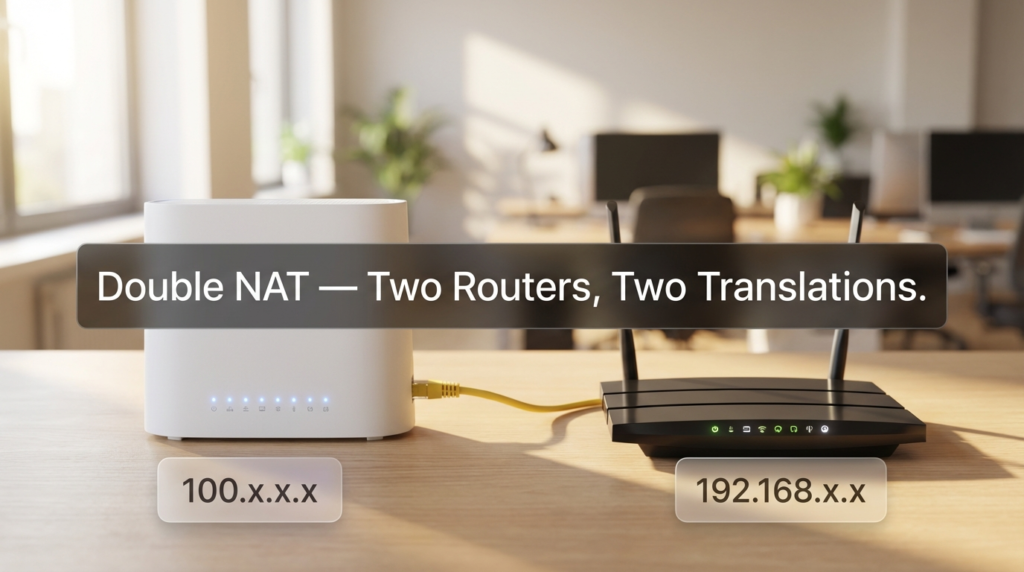
NAT stands for Network Address Translation. Your router performs this function every time your devices access the internet — it takes your private IP address (something like 192.168.1.x) and translates it to your public IP before sending traffic out. The IETF formally defined this process in RFC 2663, which laid out NAT terminology and how address translation works at the network layer.
Double NAT happens when two devices on your network are both doing NAT translation at the same time. The most common setup looks like this: your ISP provides a modem-router combo (called a gateway), and you plug your own router into it. Both devices perform NAT. Your laptop’s traffic now passes through two separate translation layers before it reaches the internet.
This is extremely common in small businesses and home offices. ISPs frequently ship “gateway” devices that combine a modem and router into one unit. Most people don’t realize it’s also acting as a router, so they plug in their own router without disabling the gateway’s routing functions. Result: Double NAT.
Why Double NAT Breaks VoIP and Real-Time Applications
This is where things get genuinely frustrating for businesses. Double NAT doesn’t just slow your connection — it actively interferes with protocols that depend on precise packet routing and consistent IP paths.
VoIP uses the Session Initiation Protocol (SIP) to set up and manage calls. SIP works by embedding IP address information directly inside the packet payload — not just in the header. When a NAT device translates your IP, it changes the header, but the SIP payload still contains the old IP address. A second NAT device makes this worse. The receiving end gets conflicting address information, which is exactly why you end up with one-way audio — the call connects, but the audio stream can only travel in one direction because the return path is misconfigured.
Zoom and similar video conferencing tools use STUN/TURN protocols to try to work around NAT. These work reasonably well with a single NAT layer. With Double NAT, STUN frequently fails to negotiate a proper path, causing disconnects or video freezing. WebRTC-based applications (like browser video calls) are particularly sensitive to this.
For any business running a desk phone system, a softphone setup, or a UCaaS platform like RingCentral or 8×8, Double NAT is a serious operational problem — not a minor inconvenience.
How to Confirm You Have Double NAT
Before changing anything, confirm the issue. Here’s a quick way to check:
- Log into your router’s admin panel (typically 192.168.1.1 or 192.168.0.1).
- Look at the WAN IP address your router is receiving from the upstream device.
- If that WAN IP starts with 10.x.x.x, 172.16.x.x – 172.31.x.x, or 192.168.x.x — it’s a private address, which means the upstream device (your ISP gateway) is already doing NAT. You have Double NAT.
A public IP in that WAN field means you’re likely fine. A private IP confirms the problem.
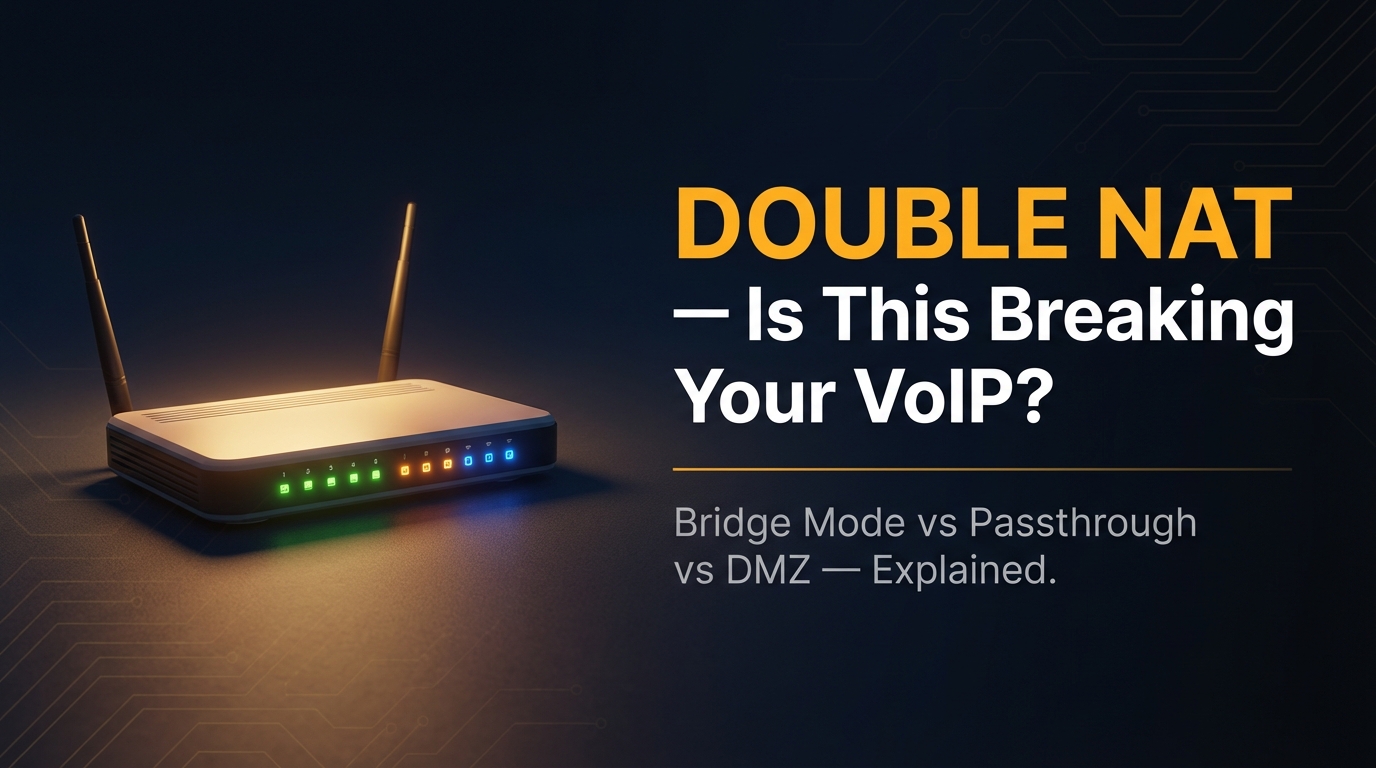
Three Ways to Fix Double NAT: Bridge Mode, IP Passthrough, and DMZ
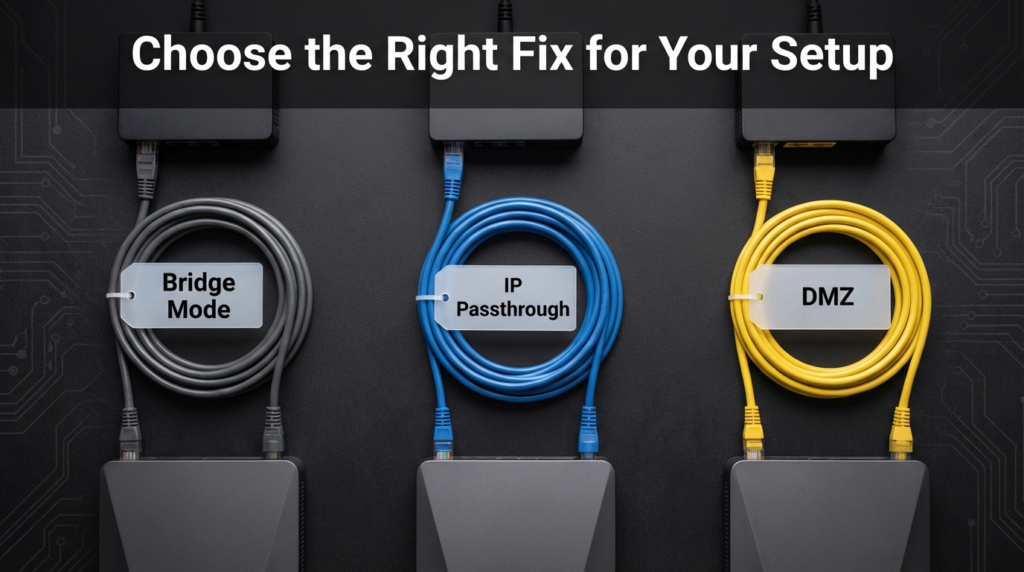
There are three main approaches to solving Double NAT. Each works differently, and each has real tradeoffs for security and network control.
| Method | How It Works | Security Impact | Best For |
|---|---|---|---|
| Bridge Mode | Disables the gateway’s routing/NAT entirely; your router handles everything | Highest security — your router’s firewall is fully in control | Offices with their own capable router/firewall |
| IP Passthrough | Gateway passes its public IP directly to one specific device (your router) | Good — your router still handles NAT and firewall rules | Businesses using ISP-provided gateways with no bridge mode option |
| DMZ (Demilitarized Zone) | Gateway forwards all inbound traffic to one designated internal IP | Lower security — the DMZ host gets no gateway-level firewall protection | Last resort when bridge mode and IP passthrough aren’t available |
Bridge Mode
Bridge mode turns the ISP gateway into a pure modem — it stops doing NAT, DHCP, and routing. Your own router then takes full control of the network. This is the cleanest fix. You get a single NAT layer, proper port forwarding, and your router’s firewall rules apply correctly.
The downside: not every ISP gateway supports bridge mode. Some ISPs actively disable it, especially on fiber installations where they want to retain control of the CPE device. You’ll need to call your ISP or dig into the gateway’s admin settings to find out.
When you enable bridge mode, your ISP gateway essentially becomes invisible to your network — traffic flows directly from the WAN to your router. SIP packets, VoIP calls, and port forwarding all behave as expected from that point forward.
IP Passthrough
IP Passthrough (sometimes called “IP address passthrough” or “transparent bridging” depending on the ISP) keeps the gateway operational but assigns its public WAN IP directly to your downstream router. The gateway still exists, but your router appears to the internet as if it’s directly connected.
This is a practical middle ground for setups where the ISP won’t enable bridge mode or where you need certain gateway features (like ISP-managed Wi-Fi or TV services that run through the gateway). Most AT&T and Comcast business gateways support this mode.
The catch: some ISP gateways don’t fully stop doing NAT in this mode. They pass the IP but maintain a thin NAT layer, which can still cause SIP issues on certain VoIP systems. Test your VoIP calls after enabling it to confirm the problem is resolved.
DMZ
DMZ is the least desirable option but sometimes the only one available. You assign your router’s LAN-facing IP as the DMZ host in the gateway’s settings. The gateway then forwards all inbound traffic to that IP, effectively removing the gateway’s firewall protection for that device.
The real risk: your router is now fully exposed to inbound internet traffic, relying entirely on its own firewall — no upstream filtering from the gateway. If your router’s firewall is solid, this is manageable. If it’s a basic consumer-grade device with default settings, it’s a real vulnerability. Only use DMZ if the other options aren’t available, and make sure your router’s firewall is properly configured before enabling it.
The Problem Double NAT Causes with Port Forwarding
Port forwarding rules only work at the device that holds the public IP. With Double NAT, the public IP lives on the ISP gateway — but your port forwarding rules are set on your internal router. Traffic arrives at the gateway, but the gateway doesn’t know where to send it, so it drops the packets.
To make port forwarding work with Double NAT, you’d need to forward the same port on both devices: once on the gateway (pointing to your router’s WAN IP), and again on your router (pointing to the actual internal device). This works, but it’s messy to maintain and error-prone. Solving Double NAT at the root is a cleaner long-term approach.
Carrier Grade NAT: The Problem You Cannot Fix Alone
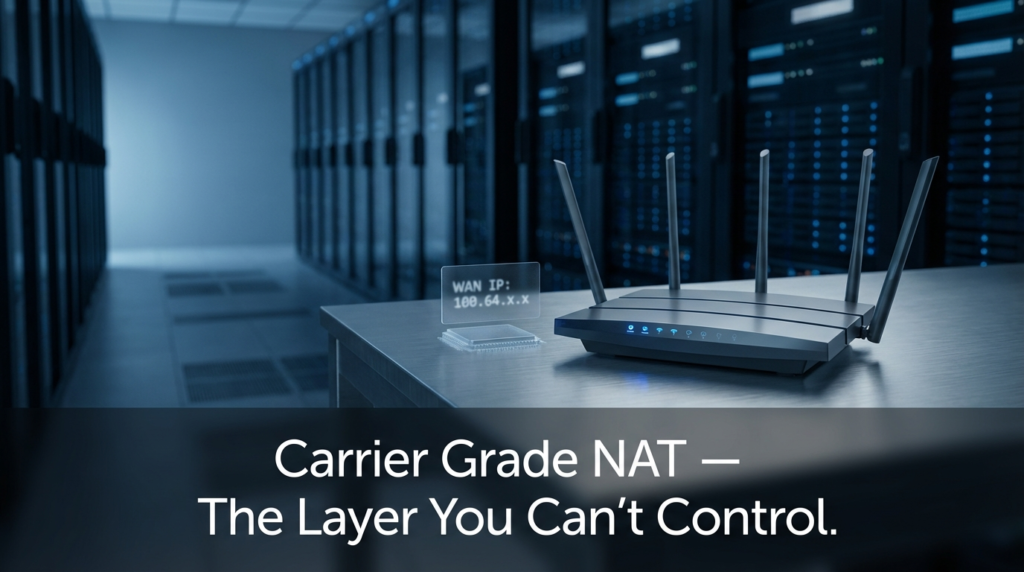
Here’s something that surprises a lot of network administrators: some Double NAT situations are caused by your ISP, not by anything in your physical setup — and user-side changes cannot fix them.
Carrier Grade NAT (CGNAT) is when an ISP performs NAT at the carrier level, before traffic even reaches your premises. This means hundreds or thousands of customers share a single public IP address at the ISP’s infrastructure level. Starlink, many 5G home internet providers, and some fiber ISPs in densely populated areas use CGNAT.
If your ISP is using CGNAT, your gateway receives a private IP from the ISP — and no bridge mode, IP passthrough, or DMZ setting on your side will give you a true public IP. The NAT is happening upstream, outside your control.
Signs your ISP is using CGNAT:
- Your gateway’s WAN IP is a private address, but your ISP confirms you’re “not behind a gateway.”
- You can see your WAN IP is something like 100.64.x.x — this is the IANA-designated range specifically for CGNAT (RFC 6598 space).
- Devices show a different IP than what you see when you check via a public IP-checker site.
Actual solutions for CGNAT:
- Request a static public IP from your ISP. Many ISPs offer this as a paid add-on for business accounts. This gets you out of CGNAT entirely.
- Use a VPN with a fixed endpoint. If static IPs aren’t available, a business VPN (with your VoIP traffic tunneled through it) can bypass CGNAT’s interference with SIP.
- Switch to a SIP provider that handles CGNAT-aware media relay. Some cloud UCaaS platforms use TURN servers to handle media relay regardless of NAT type.
If you’re on Starlink and running a VoIP system, this is the most common root cause of your call quality issues — and the only reliable fix is either a static IP add-on (if Starlink offers it in your region) or routing VoIP through a dedicated SIP trunk that uses TURN-based media relay.
Frequently Asked Questions
Q: Does Double NAT slow down my internet speed? Not significantly. Double NAT adds a tiny amount of processing overhead at each router, but it won’t cause a noticeable speed reduction on modern hardware. The real damage is to protocols that rely on precise IP address handling — VoIP, port forwarding, and peer-to-peer applications.
Q: Can I just disable my ISP gateway entirely? Only if your ISP allows it and you have a compatible modem. Some ISPs, particularly on fiber, require their gateway for authentication (PPPoE with proprietary credentials) and won’t allow third-party hardware. Check with your ISP before purchasing a standalone modem.
Q: My router says my connection type is “double NAT detected” — is that accurate? Yes. Routers like those running OpenWrt, pfSense, or even some consumer Asus and Netgear models detect Double NAT by checking whether the WAN IP they receive is in a private range. If the router reports this, take it seriously.
Q: Does Double NAT affect gaming? Yes. Online gaming often requires open NAT types for peer connections. Double NAT usually results in a “Strict” or “Moderate” NAT type on gaming consoles, which can prevent you from hosting matches, joining certain lobbies, or maintaining stable peer connections. The fix is the same: bridge mode or IP passthrough.
Wrapping Up
Double NAT is one of those network problems that’s easy to overlook because the symptoms look like something else — bad VoIP quality, random disconnects, port forwarding that won’t cooperate. Once you understand what’s happening at the packet level, the path to a fix becomes much clearer.
Start by confirming the issue with your router’s WAN IP. If you see a private address, check whether your ISP gateway supports bridge mode first — it’s the cleanest solution. If not, IP passthrough is your next best option. Reserve DMZ for situations where nothing else is possible, and always double-check your router’s firewall before using it.
If you’re on Starlink or a 5G provider and the gateway WAN IP is in the 100.64.x.x range, you’re dealing with CGNAT — a different problem entirely that requires ISP-level changes or a VPN-based workaround, not just router adjustments.
For businesses running VoIP, getting this sorted isn’t optional. One-way audio and dropped SIP calls have a real impact on daily operations. The good news is that once the network layer is clean — single NAT, proper firewall, real public IP — VoIP systems almost always sort themselves out.