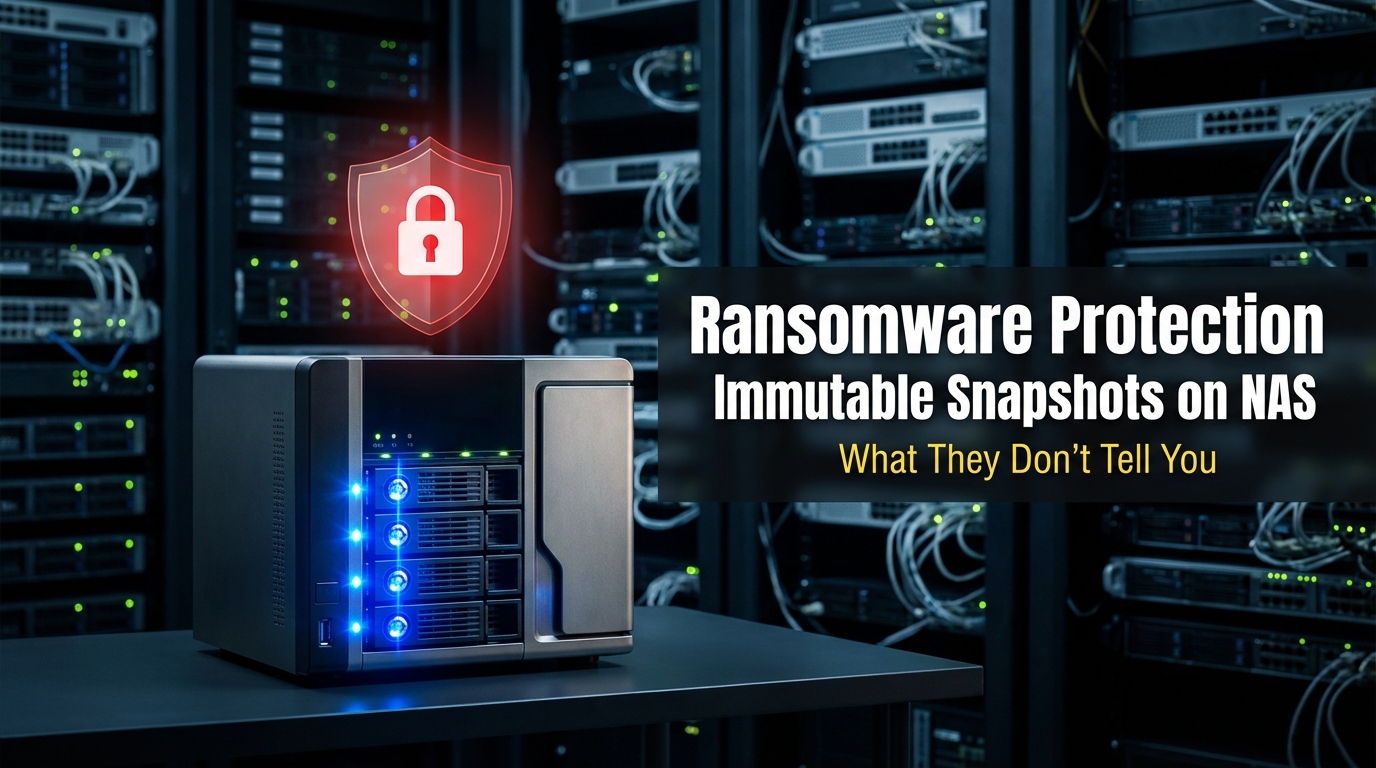
Ransomware doesn’t announce itself. One morning your file server is fine, and by afternoon half your network share is encrypted with a ransom note sitting in every folder. If you’ve spent any time managing office network infrastructure, you’ve either seen this happen or spent considerable energy making sure it doesn’t. Immutable snapshots on NAS devices have become one of the more reliable defenses against this kind of attack — but they come with real trade-offs that don’t always get explained upfront.
I’m Donna Parker, and I’ve spent years writing about and researching office network infrastructure — from switch configurations and VLAN segmentation to storage architecture and backup design. Immutable snapshots are one of those topics where the marketing pitch is clean but the real-world implementation gets messy fast. What follows is what I’ve pieced together from documentation, vendor deep-dives, and watching how these systems actually behave in small-to-medium office environments.
What Immutable Snapshots Actually Are
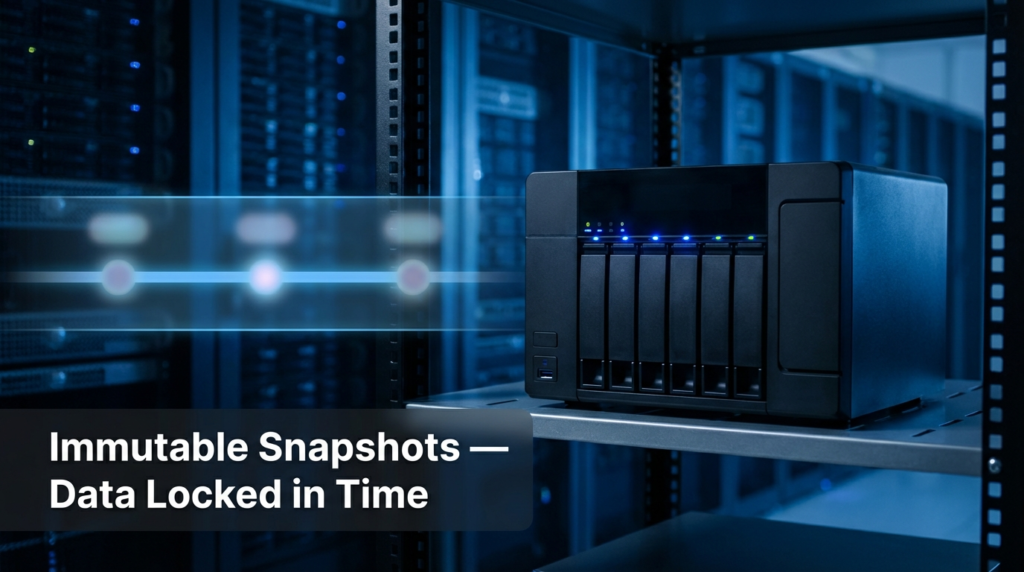
A snapshot is a point-in-time copy of your data. When you take a snapshot on a NAS, the system records the state of every file at that exact moment. If something changes after that — a file gets modified, encrypted by ransomware, or deleted — the snapshot still holds the original version.
Immutability adds a lock on top of that. Once an immutable snapshot is created, nothing can alter or delete it — not a user, not an administrator, and critically, not ransomware. Even if an attacker gains full admin access to your system, the snapshot data sits outside their reach until the retention period expires.
Most enterprise-grade NAS platforms — QNAP, Synology, TrueNAS, and NetApp among them — now support immutable snapshots either natively or through WORM (Write Once Read Many) volume configurations. The underlying mechanism varies by vendor, but the result is the same: locked data blocks that survive even if the live filesystem is completely wiped.
Why Ransomware Specifically Targets Backups First
Here’s something that surprises people who haven’t dealt with a real ransomware incident: sophisticated ransomware variants don’t just encrypt your files. They scout your environment first. They look for mapped backup drives, shadow copies, and sometimes even cloud sync folders. If a backup destination is writable and reachable from an infected machine, ransomware will encrypt or delete it before it goes after your primary data.
This is exactly why a regular backup on a shared network drive isn’t enough. The CISA Stop Ransomware guidance (available at cisa.gov/stopransomware) explicitly recommends maintaining offline, immutable, or air-gapped backups as part of any layered defense. The guidance isn’t theoretical — it reflects what investigators found after hundreds of real incidents.
Immutable snapshots work here because they break the attack chain. Even if ransomware reaches your NAS and encrypts everything on the live volume, the snapshots stored in the locked retention pool are untouchable from the network layer. Recovery becomes a matter of rolling back to the last clean snapshot rather than paying a ransom or rebuilding from scratch.
The Hidden Cost: Storage Bloat Is Real
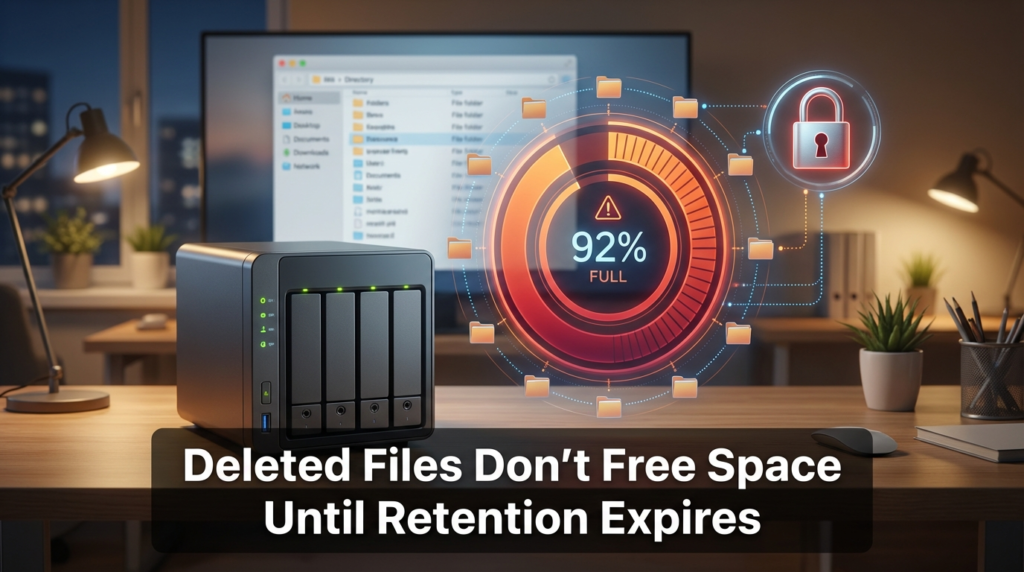
This is where most articles stop giving you the full picture. When you enable immutable snapshots, something changes about how the NAS handles deleted files and modified blocks — and it directly affects how much storage you’ll actually use.
Normally, when you delete a file, the storage blocks it occupied get marked as free and can be reused. With immutable snapshots active, those blocks can’t be released until every snapshot that references them has expired. So if you have a 30-day retention policy and you delete a 50GB folder today, that 50GB stays locked on disk for the next 30 days. The folder is gone from your view, but the storage is not freed.
The same applies to modified files. Every time a file changes, the old version’s blocks get preserved in the snapshot. High-churn environments — think shared drives where documents are edited constantly, or database servers — can see their snapshot footprint grow to two or three times the size of the live data within weeks.
| Snapshot Behavior | What You See | What’s Actually Happening |
|---|---|---|
| File deleted by user | Folder appears empty | Blocks remain locked until retention expires |
| File modified | New version visible | Old blocks preserved in snapshot layer |
| Volume appears 60% full | Dashboard shows available space | Hidden snapshot pool consuming unlisted blocks |
| Retention policy set to 90 days | “Safe” for 90 days | Storage can grow significantly in high-edit environments |
The practical fix is to size your NAS storage conservatively by factoring in your data change rate. If your team modifies roughly 20% of your stored data per month and you run a 60-day retention policy, plan for snapshot storage to consume somewhere between 40–60% additional capacity on top of your live data. Your vendor’s documentation usually includes a snapshot reserve calculator — use it before you commit to a retention policy.
Traditional Backup vs. Immutable Snapshot: Recovery Time Compared
People sometimes use the terms interchangeably, but they describe different tools with different strengths. Here’s how they compare on the metric that matters most during an incident:
| Feature | Traditional Backup | Immutable Snapshot |
|---|---|---|
| Recovery Time Objective (RTO) | Hours to days (restore from tape/cloud) | Minutes to low hours (local rollback) |
| Recovery Point Objective (RPO) | Last backup interval (often 24 hours) | Last snapshot interval (can be minutes) |
| Ransomware resistance | Low if backup destination is writable | High — locked blocks cannot be modified |
| Offsite protection | Yes (if backup destination is offsite) | No — snapshot lives on the same device |
| Storage overhead | Moderate (deduplicated, compressed) | Higher in high-churn environments |
| Complexity to restore | Moderate to high | Low (most platforms offer one-click rollback) |
| Cost to implement | Variable | Included in most NAS platforms |
The recovery time difference is significant in practice. A traditional restore from an offsite backup might mean hours of downloading and rebuilding. A snapshot rollback on a local NAS can bring a shared folder back to yesterday’s state in under ten minutes. For offices where downtime translates directly to lost productivity, that gap matters.
The Limitation Nobody Warns You About Early Enough
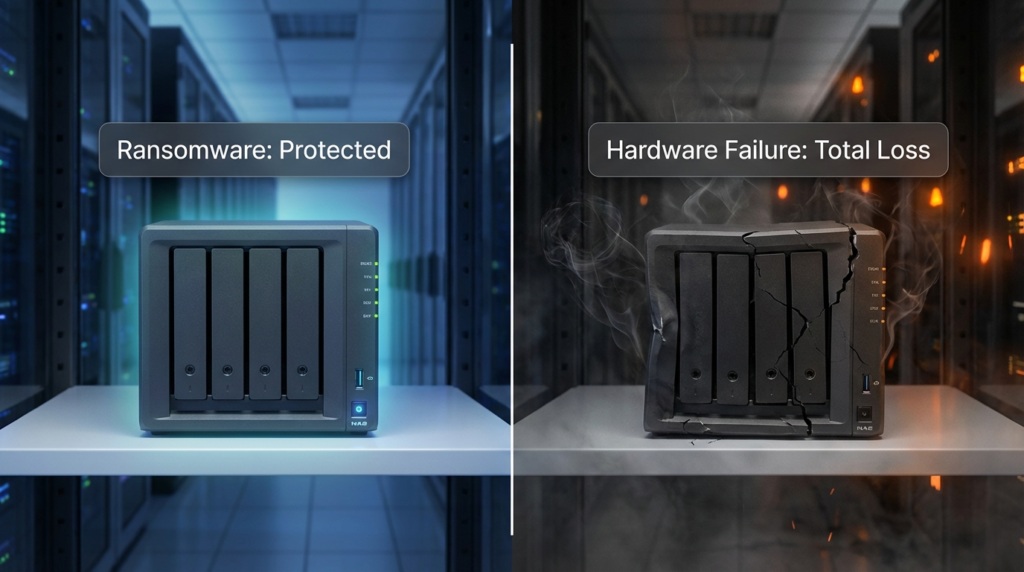
Snapshots are not backups. I want to be direct about this because it’s the most important caveat in this entire topic.
If the NAS device itself is destroyed — a fire, a flood, a failed storage controller that corrupts the drive array — the immutable snapshots go with it. Every locked block, every point-in-time recovery option, gone. You’re left with nothing.
This is not a hypothetical. Hardware failures happen. Offices flood. A snapshot-only strategy with no offsite component is not a data protection strategy — it’s a ransomware defense that leaves you completely exposed to physical and hardware risk.
The correct approach treats immutable snapshots as the fast, ransomware-resistant recovery layer, and a separate backup — whether cloud-based or physically offsite — as the disaster recovery layer. These two tools solve different problems and should coexist, not replace each other.
A small office I read about in a community discussion lost a NAS to a cooling failure. They had immutable snapshots configured and had been relying on them exclusively. No offsite backup. Total data loss. Their snapshot retention was set to 60 days, which would have protected them well against ransomware — but did nothing when the hardware itself stopped working.
How to Set This Up Without Getting It Wrong
The configuration decisions you make at the start will shape how well immutable snapshots actually protect you.
Retention period: Too short and ransomware that sat dormant for several weeks can pre-date all your clean snapshots. Most security-focused recommendations suggest a minimum of 30 days, with 60–90 days providing a stronger safety margin for slower-moving threats.
Snapshot frequency: More frequent snapshots reduce your RPO but increase storage consumption faster. A common balance for office file servers is hourly snapshots during business hours and daily snapshots overnight.
Separate the snapshot admin account: If ransomware or an attacker compromises your regular admin credentials, you don’t want them to also have access to snapshot management. Many NAS platforms allow you to create a separate account with snapshot-only permissions, isolated from normal administrative access.
Test your rollback process: A snapshot you’ve never tested is a snapshot you can’t trust under pressure. Run a quarterly drill where you actually roll back a test folder to verify the process works and your team knows the steps.
FAQs
Can ransomware delete immutable snapshots if it has admin access to the NAS? On properly configured systems, no. Immutable snapshots are locked at the storage level and cannot be deleted even by an authenticated administrator until the retention period expires. Some platforms add an additional tamper-protection layer that requires a secondary approval or physical console access to change retention settings.
How much extra storage should I plan for if I enable immutable snapshots? It depends on your data change rate. A document-heavy office with frequent edits should plan for significantly more capacity than the live data size alone — your vendor’s snapshot reserve calculator is the most reliable way to estimate this for your specific environment.
Are immutable snapshots enough on their own to protect against ransomware? They’re a strong defense against ransomware specifically, but they don’t protect against physical hardware loss or site-level disasters. You still need an offsite backup component to cover those scenarios.
What’s the difference between a WORM volume and an immutable snapshot? A WORM volume applies immutability at the file write level — once a file is written, it can’t be modified or deleted. An immutable snapshot applies immutability to a point-in-time copy of the filesystem. They solve related but distinct problems, and some environments use both together for compliance and recovery purposes.
Conclusion
Immutable snapshots on NAS storage are a genuinely useful tool for ransomware defense — they break the attack chain at the point where most backups fail. But they work best when you go in with clear expectations. Storage will grow faster than you expect, especially in active environments. The snapshots are only as safe as the hardware they live on. And they solve a different problem than offsite backups do.
The setup that actually holds up combines immutable snapshots for fast local recovery with a separate, offsite backup for hardware and site-level protection. Neither tool replaces the other. Used together, they cover the scenarios that individually neither can handle alone.