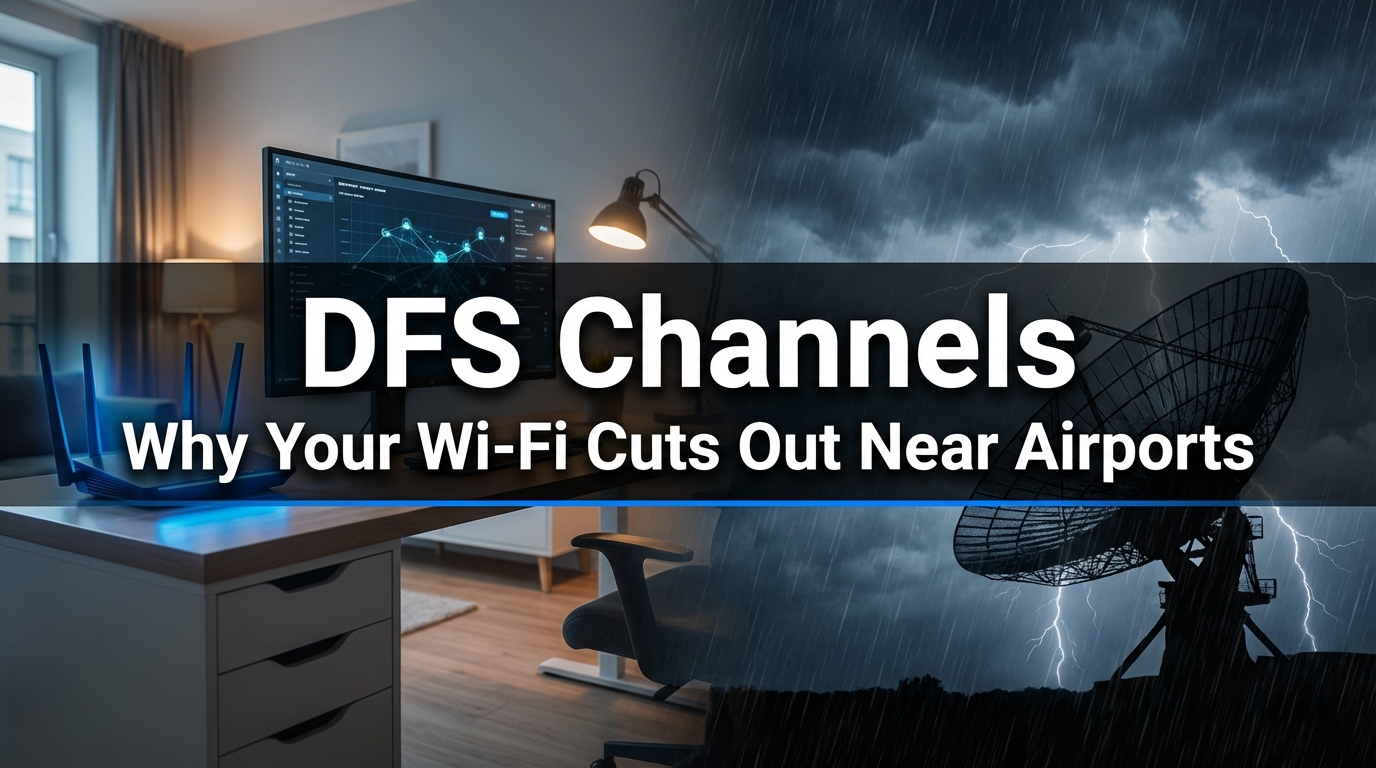
If you work from home in an apartment and your Wi-Fi randomly drops for a minute or two — no warning, no explanation — there’s a good chance DFS is the reason. Not a bad router. Not your ISP. Dynamic Frequency Selection doing exactly what regulators designed it to do.
Understanding how DFS channels work, when they hurt more than they help, and how to configure around them can mean the difference between a stable video call and an embarrassing freeze mid-sentence.
I’ve been writing about office and home network infrastructure for years now, spending a lot of that time testing routers, reading FCC documentation, and helping people troubleshoot setups that “should work but don’t.” DFS problems come up constantly, especially in dense urban buildings where residents are running home offices close to airport radar and weather stations. It’s one of those topics that sounds technical but has very practical consequences for anyone working remotely.
What DFS Actually Is (and Why It Exists)
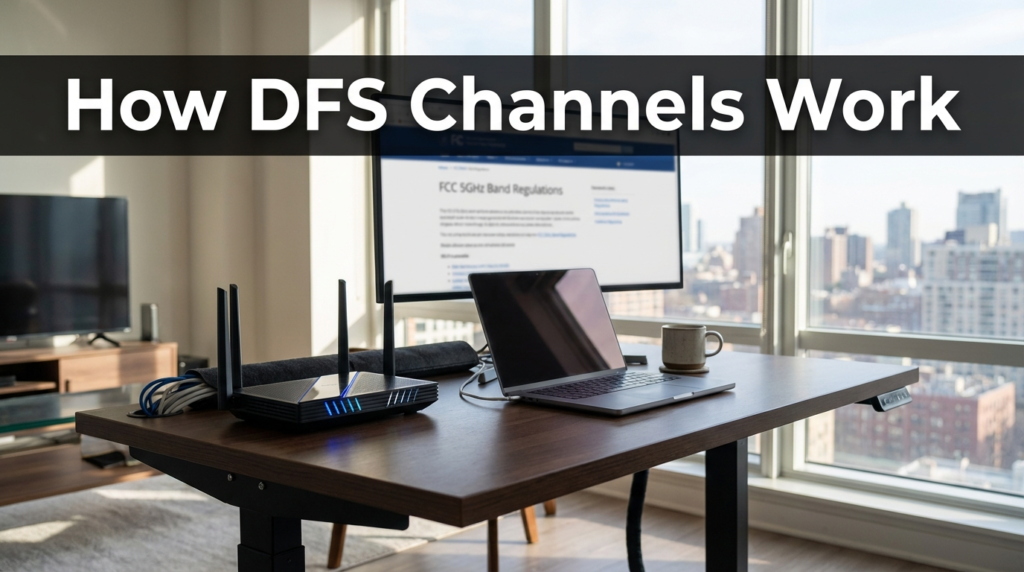
DFS stands for Dynamic Frequency Selection. It’s a mandatory protocol on the 5GHz Wi-Fi band that forces wireless devices to detect radar signals and vacate those frequencies immediately if radar is found. The FCC requires it on specific 5GHz channels — the ones in the 52–144 range — because those frequencies overlap with radar systems used by weather stations, air traffic control, and military operations.
The idea is simple: radar gets priority. Wi-Fi is secondary. If your router picks up a radar pulse on the channel it’s using, it has to stop broadcasting on that channel, wait, and either move to a new channel or wait until the coast is clear.
The FCC’s guidance on U-NII devices and 5GHz band regulations makes this clear — devices operating in the U-NII-2A and U-NII-2C bands must comply with DFS requirements before transmitting. That means a mandatory “Channel Availability Check” before even starting, plus immediate action if radar is detected mid-use. You can find the relevant technical framework at fcc.gov under electromagnetic compatibility and RF safety documentation.
DFS Channels vs. Non-DFS Channels: The Core Difference
Here’s a breakdown of how the two groups compare in practical terms:
| Feature | DFS Channels (52–144) | Non-DFS Channels (36–48, 149–165) |
|---|---|---|
| Channel numbers | 52, 56, 60, 64, 100–144 | 36, 40, 44, 48, 149, 153, 157, 161, 165 |
| Radar detection required | Yes | No |
| CAC wait time (startup) | 60 seconds (up to 10 min in some bands) | None |
| Channel switch on radar | Yes — immediate drop | No — stays stable |
| Max transmit power | Higher (up to 250mW/24dBm in some bands) | Lower limit on U-NII-1 (36–48) |
| Indoor/outdoor restriction | Some channels outdoor restricted | U-NII-1 indoor only; U-NII-3 flexible |
| Congestion in apartments | Less crowded | Often very congested |
The tradeoff is real. DFS channels give you more room to breathe because fewer devices use them — most consumer gear defaults to non-DFS channels. But the radar compliance requirement means you’re gambling on your local radio environment every time your router powers on or switches channels.
The Airport and Weather Station Problem
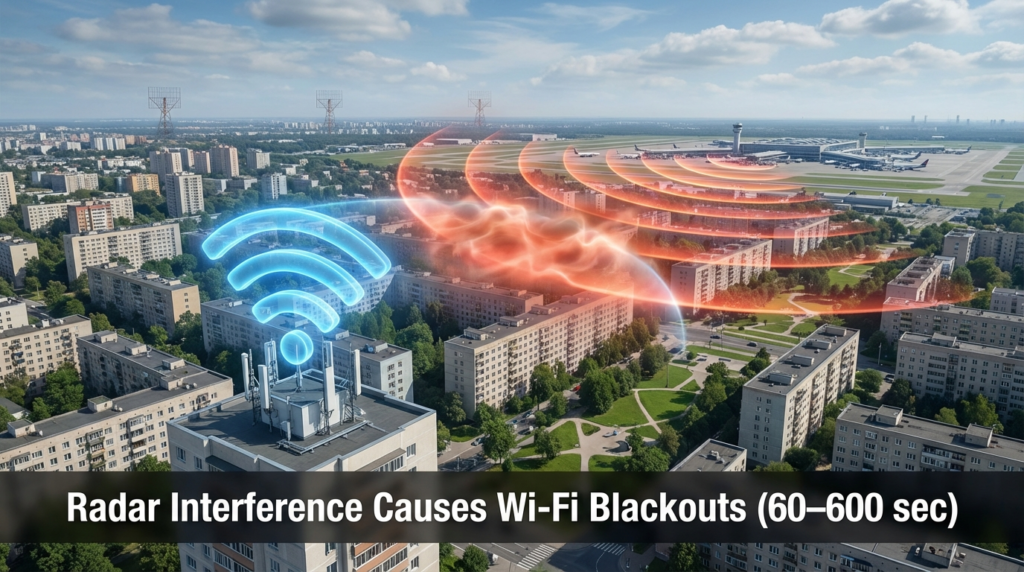
This is where apartment workers near airports run into serious trouble. You don’t need to live next to a military base for this to happen. A weather radar station, an air traffic control secondary radar, or even certain maritime radar systems can trigger DFS events.
When your router detects a radar signal — or thinks it does — it goes into what’s commonly called a “DFS wait.” The router stops broadcasting on that channel entirely. Depending on the channel and band, that silence lasts anywhere from 60 seconds to 600 seconds. Ten full minutes where your 5GHz network simply does not exist.
For someone on a video call, that’s a complete disconnect. For someone using a cloud application, it’s a dropped session. Most people assume the router crashed or the ISP had a blip. They restart the router, which starts the Channel Availability Check over again — another 60-second minimum wait before the radio comes back.
What makes this worse in apartments: the building structure doesn’t block radar. Radar operates at frequencies that pass through walls quite easily at the power levels weather and airport systems use. Living on a high floor actually increases your exposure.
False positives are also a documented issue. Consumer routers don’t have sophisticated radar detection hardware. Some confuse certain interference patterns — microwave ovens, other wireless signals — with radar pulses. The router drops the channel anyway because the regulation requires erring on the side of caution.
Which DFS Channels Are Riskiest Near Urban Areas
Not all DFS channels carry equal radar risk. The channels in the 5.6GHz range (channels 120, 124, 128) overlap with Terminal Doppler Weather Radar frequencies. These are common near airports specifically because airports use TDWR for wind shear detection. The FCC has additional restrictions on these channels — including longer CAC times and lower radar detection thresholds — because of how critical that radar is.
| Channel Range | Frequency | Primary Radar Concern | CAC Time |
|---|---|---|---|
| 52–64 | 5.26–5.32GHz | Military/government radar | 60 seconds |
| 100–116 | 5.5–5.58GHz | Weather radar, air traffic | 60 seconds |
| 120–128 | 5.6–5.64GHz | TDWR (airport wind radar) | Up to 600 seconds |
| 132–140 | 5.66–5.70GHz | General radar | 60 seconds |
| 144 | 5.72GHz | Limited use, newer addition | 60 seconds |
If you’re within 30–35 kilometers of an airport with a TDWR installation, channels 120, 124, and 128 are practically unusable for stable home office work. Some routers won’t even let you manually select these in their interface.
How to Tell If DFS Is Causing Your Drops
The pattern matters. DFS-related drops have a specific signature: the 5GHz network disappears entirely for 60–600 seconds, then comes back — sometimes on a different channel, sometimes on the same one. The 2.4GHz network keeps working the whole time. Your router logs (if you can access them) will show “radar detected” or “DFS event” entries around the time of each drop.
Tools like Wi-Fi Analyzer apps on Android can show you channel switches in real time. If you see your network jump from channel 100 to channel 36 suddenly, that’s a DFS event. The router moved to a non-DFS channel to escape the radar detection.
Router admin panels on better routers — ASUS, Netgear Nighthawk, some TP-Link models — log DFS events directly. Linksys and budget routers often don’t surface this information, which is why people spend weeks thinking they have an ISP problem.
Practical Configuration Choices for Apartment Workspaces
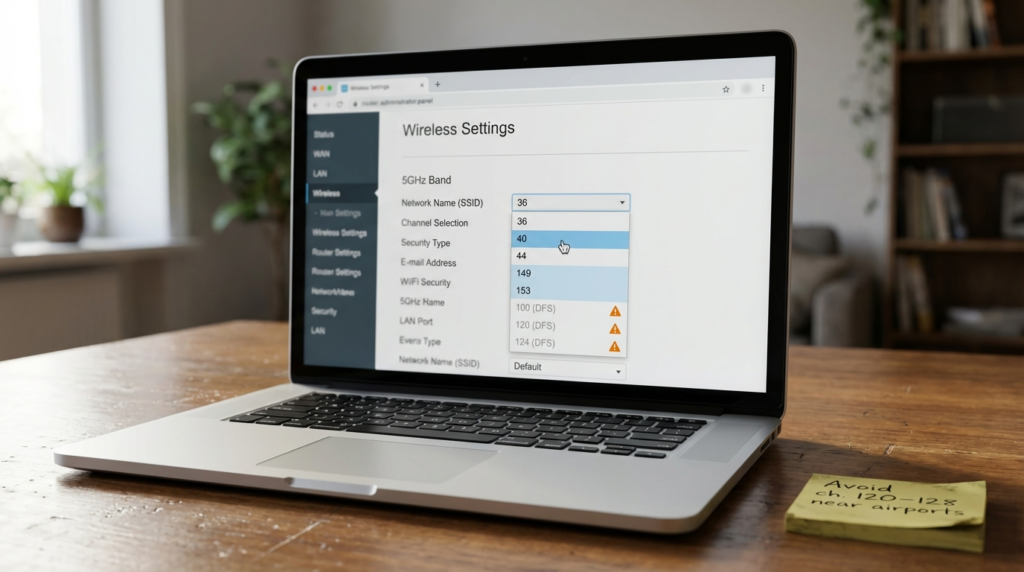
Option 1: Lock your router to non-DFS channels. Go into your router’s wireless settings and manually set the 5GHz channel to 36, 40, 44, or 48 (if you want to stay in U-NII-1), or 149, 153, 157, 161, or 165 (U-NII-3). These channels don’t require radar detection. They’ll never drop due to a DFS event. The tradeoff is potential congestion — in a dense apartment building, these channels get crowded.
Option 2: Use the 6GHz band if your hardware supports it. Wi-Fi 6E and Wi-Fi 7 routers include the 6GHz band, which has no DFS requirements. It’s a clean spectrum with no radar overlap. If your devices support it, the 6GHz band gives you the congestion relief of DFS channels without the radar interruption risk.
Option 3: Accept DFS but choose lower-risk channels. If you want the extra channel space and your location doesn’t have TDWR nearby, channels 52–64 and 132–140 carry lower radar risk than the 100–128 range. Avoid 120, 124, 128 entirely if you’re near an airport.
A Real-World Case That Illustrates the Problem
A colleague working from an apartment in the Chicago suburbs spent two months troubleshooting what he described as “random internet outages.” His ISP ran line checks. He replaced his router. Nothing changed. The drops happened two or three times a day, always on the 5GHz band, always lasting about 90 seconds.
When he finally checked his router logs, every event was labeled “DFS channel switch.” His building was roughly 20 kilometers from O’Hare, well within TDWR range. His router had been auto-selecting channels in the 100–128 range because they were less congested. Each time the airport radar triggered detection, his network went dark.
Locking the router to channel 149 solved it completely. Less bandwidth per channel in theory — but a stable connection matters more than peak throughput when you’re on a call.
FAQs
Why does my 5GHz Wi-Fi drop but 2.4GHz keeps working? DFS only affects 5GHz channels. If the 5GHz band disappears but 2.4GHz stays up, a DFS event is one of the most likely causes, especially if you’re near an airport or weather station.
Can I disable DFS on my router entirely? Not legally in the US. FCC regulations require DFS compliance on channels 52–144. Some routers let you avoid those channels by manual selection, but you can’t disable the detection mechanism itself.
Does a mesh network handle DFS events better? It depends on the system. Some mesh routers share channel selection across nodes, so a DFS event on the main node can cascade. Others handle it per-node. In high-DFS environments, locking mesh nodes to non-DFS channels is still the more reliable approach.
Is the 6GHz band available on all Wi-Fi 6 routers? No. 6GHz is only available on Wi-Fi 6E and Wi-Fi 7 devices. Standard Wi-Fi 6 (802.11ax) doesn’t include the 6GHz band.
Wrapping Up
DFS channels are a legitimate tool for reducing congestion on the 5GHz band, and the higher transmit power limits they allow can improve range in some situations. But for apartment workers near airports or weather infrastructure, the radar detection requirement introduces a real and frustrating source of downtime. The 60–600 second wait times aren’t a bug — they’re the spec. Knowing that changes how you approach channel selection entirely.
If your 5GHz network drops on a predictable pattern and your ISP line checks out clean, pull your router logs before you buy new hardware. The answer is usually already in there.