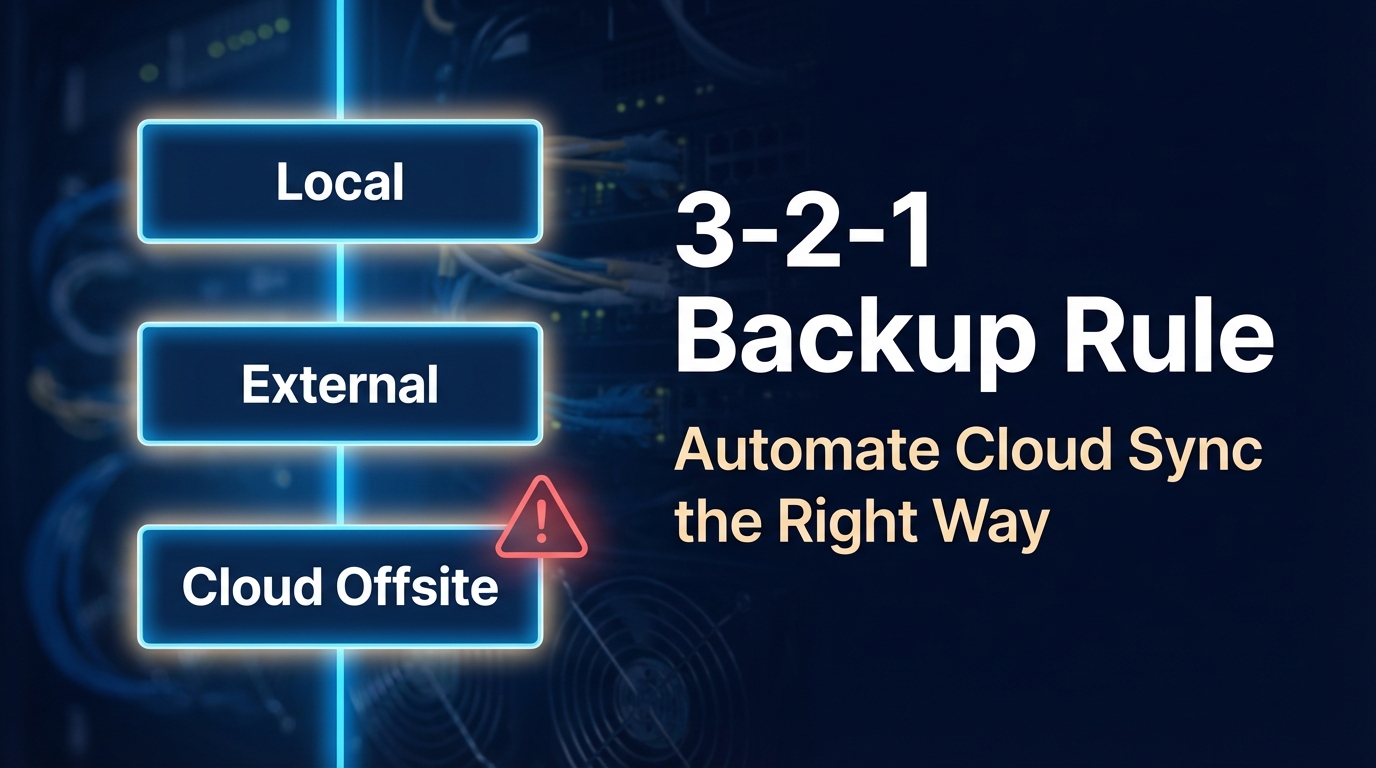
Most people think they have a backup. They set up Google Drive or Dropbox, let it sync their files, and move on. Then one day — accidental deletion, ransomware, or a corrupted drive — and they go to restore. Nothing is there. Or worse, they get a bill for cloud retrieval costs they never saw coming.
The 3-2-1 backup rule is the clearest framework for avoiding exactly that scenario. It’s been recommended by security agencies for years, and for good reason: it works. But applying it properly — especially when automating offsite cloud sync — takes more thought than just installing a backup app.
I’m Donna Parker, and I’ve spent years writing about office network infrastructure, digging into how businesses and home users set up storage, redundancy, and cloud pipelines. One thing I keep running into is the gap between what people think their backup setup does and what it actually does. This article is my attempt to close that gap, with real pricing context, honest trade-offs, and a clear walkthrough of how to automate the right way.
What the 3-2-1 Backup Rule Actually Means
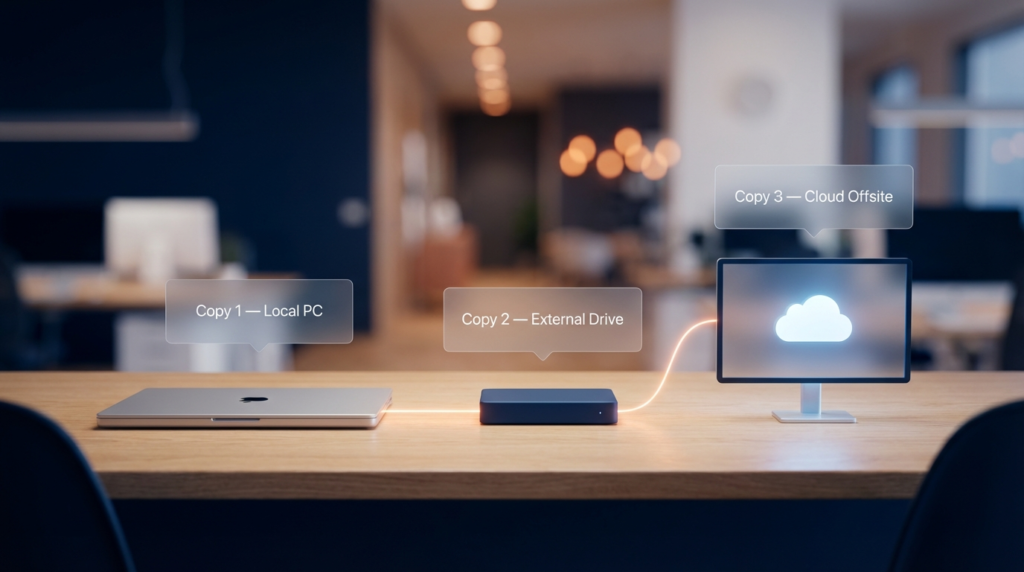
The rule is simple: keep 3 copies of your data, on 2 different types of storage media, with 1 copy stored offsite.
Here’s what that looks like in practice for a small business or home setup:
- Copy 1: Your working files on your primary computer or server
- Copy 2: A local backup on an external hard drive or NAS device
- Copy 3: An offsite backup — either physical media at another location or cloud storage
The offsite copy is the one most people skip or get wrong. Local copies protect against hardware failure. The offsite copy protects against fire, theft, flood, or ransomware that spreads across your local network.
CISA (formerly US-CERT) outlines this framework in their data backup guidance at cisa.gov/news-events/news/data-backup-options, and their core message is the same: no single copy strategy is sufficient, and physical proximity is a real risk.
Sync Is Not Backup — This Distinction Will Save You
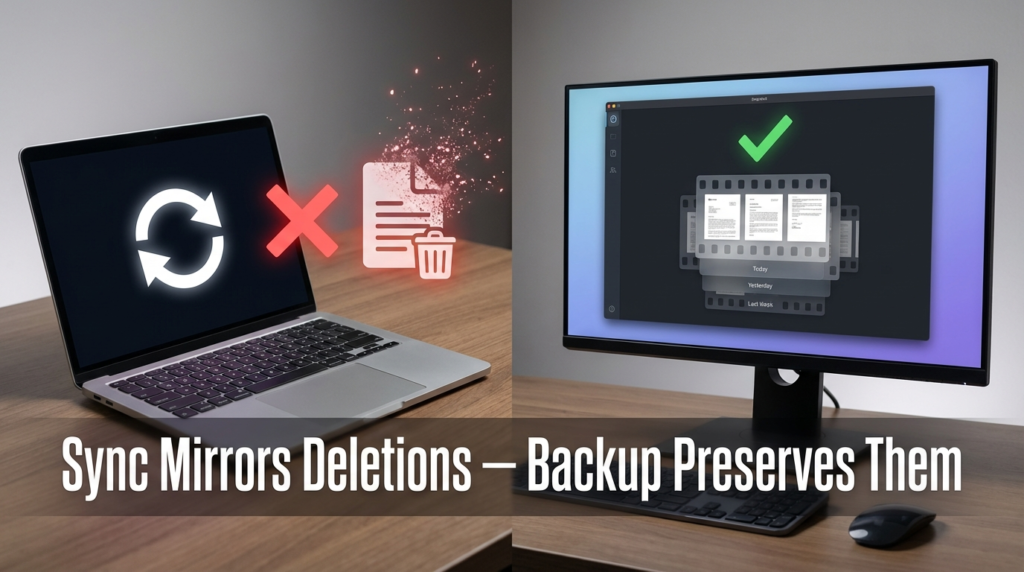
This is the most important thing in this entire article, so let’s be direct about it.
Sync tools like Google Drive, Dropbox, and OneDrive are not backup tools. They are file mirrors. When you delete a file on your computer, the sync client deletes it from the cloud within seconds. When ransomware encrypts your files, the encrypted versions sync up and overwrite your good copies.
Sync is designed for access, not recovery. Backup is designed for recovery.
Some sync services offer version history or trash recovery — Google Drive keeps deleted files for 30 days, for instance — but that’s a convenience feature, not a reliable backup strategy. If you don’t catch the deletion in time, or if the ransomware is smart enough to wait before encrypting, you lose the window.
A real backup tool takes a snapshot. It does not delete your archived copy just because you deleted the source. That is the fundamental difference.
| Feature | Sync Tool (Dropbox, Drive) | Backup Tool (Backblaze, Veeam) |
|---|---|---|
| Mirrors deletions | Yes | No |
| Version history | Limited (30-90 days typical) | Extended, configurable |
| Protects against ransomware | Weak | Strong (with air-gap or immutability) |
| Restores specific point in time | Difficult | Yes |
| Designed for file access | Yes | Secondary feature |
| Designed for recovery | No | Yes |
If you’re using Dropbox as your only “backup,” you have a sync — not a backup.
Automating the Offsite Cloud Sync: The Right Tools for the Job
Once you understand the distinction, setting up the offsite leg of your 3-2-1 system requires choosing software that actually behaves like a backup tool.
Rclone is one of the most-used open-source tools for this. It syncs to over 70 cloud providers, supports scheduling via cron (Linux/Mac) or Task Scheduler (Windows), and crucially — it can be configured for copy mode rather than sync mode, so deletions on your local drive don’t delete your remote copies.
Duplicati is another strong option, especially for non-technical users. It supports encryption before upload, works with AWS S3, Backblaze B2, Google Drive, and others, and handles scheduling natively through a web UI.
Restic is popular in IT circles for its deduplication and snapshot model. It stores backups as immutable snapshots rather than overwriting files, which is exactly what you want.
For businesses running Windows environments, Veeam Agent for Windows (free tier) handles local and cloud backup with scheduling. The free version covers individual machines and is solid for small offices.
The Hidden Cost Nobody Talks About: API Transaction and Retrieval Fees
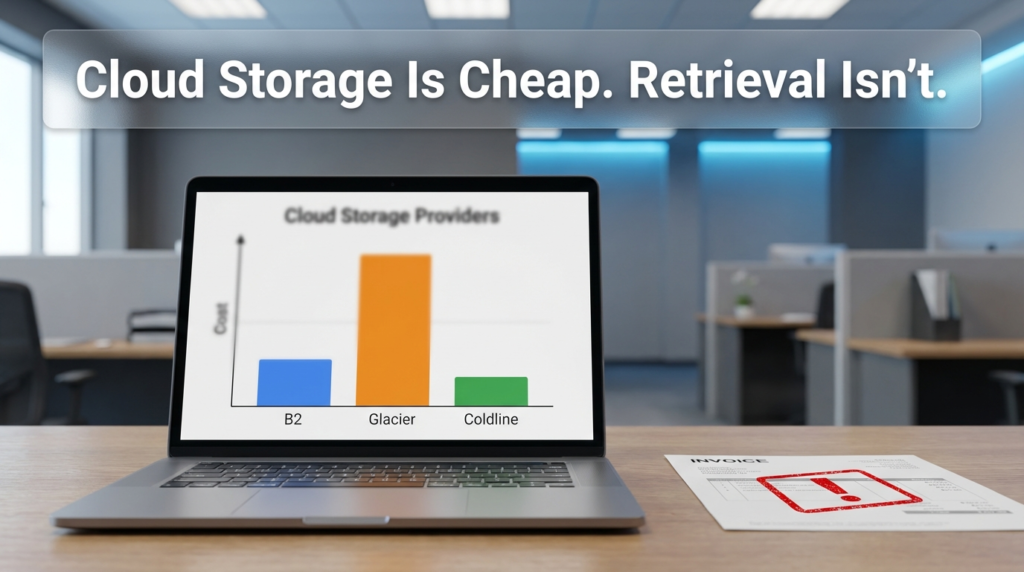
Here’s where “cheap” cloud storage gets complicated.
AWS S3 Glacier and similar “cold storage” tiers advertise very low storage costs. And they are cheap to store data in. But the moment you need to restore data, the pricing model flips. Glacier charges for retrieval based on how fast you want your data — expedited retrievals cost significantly more than bulk retrievals, which can take hours.
Beyond retrieval, API request fees add up. Every time your backup client checks a file, uploads a chunk, or lists your bucket contents, that’s an API call. At scale — or when something goes wrong and the client retries aggressively — those requests generate real costs.
This is not a warning to avoid cloud storage. It’s a warning to read the pricing page before you commit, and specifically to model what a restore would cost, not just ongoing storage.
Here’s a comparison of estimated restore costs for 1TB of data across three providers. Note that these figures reflect general pricing tiers and are subject to change — always verify current pricing directly on each provider’s website before planning your budget.
| Provider | Storage Cost (per TB/month) | Retrieval Cost (1TB) | Retrieval Speed | Notes |
|---|---|---|---|---|
| Backblaze B2 | ~$6 | ~$10 (egress fees apply) | Hours to days | No retrieval tier fees; pay for egress |
| AWS S3 Glacier | ~$4 | Varies by tier (bulk is cheapest) | 3–12 hours (bulk) | Expedited can be much higher |
| Google Cloud (Coldline) | ~$4 | Billed per GB egress | Hours | Also charges API operation fees |
Backblaze B2 is often cited as the most predictable option for small to medium restores because it doesn’t have a separate “retrieval tier” fee structure like Glacier. You pay egress, and that’s mostly it. AWS Glacier is cheaper for pure storage but can surprise you on the way out.
A company I was writing about had stored several terabytes in Glacier for disaster recovery purposes. When they ran a full restore test — something everyone should do regularly — the expedited retrieval costs alone were eye-opening. They hadn’t modeled the restore scenario when they chose Glacier. They had only looked at monthly storage costs.
Test your restore. Every time.
Setting Up an Automated 3-2-1 Workflow: A Practical Example
Here’s how a small office setup might look using free or low-cost tools:
Step 1 — Local primary copy: Files live on a workstation or file server. This is Copy 1.
Step 2 — Local secondary copy: A NAS device on the same network runs nightly backups using built-in backup software (Synology, QNAP, or a simple rsync script). This is Copy 2 on different media.
Step 3 — Offsite cloud copy: Rclone or Duplicati runs a nightly job that copies new and changed files to Backblaze B2 or another cloud provider. The tool is configured in copy mode — deletions locally do not delete the remote copy. Retention is set to keep versions for 90 days. This is Copy 3.
Scheduling matters. The offsite backup should run after the local backup completes, so you’re not uploading partially written files. For most setups, a window between 2–4 AM works well.
Encryption before upload is non-negotiable for sensitive business data. Both Duplicati and Restic handle this automatically. You keep the encryption key; the cloud provider cannot read your files.
Common Mistakes That Break the 3-2-1 Rule
Treating the cloud sync as the offsite copy. If your “offsite” copy is Google Drive and you also have Drive installed on your machine actively syncing, ransomware can reach it. The offsite copy should be a write-only or append-only destination when possible.
Not testing restores. A backup you’ve never restored from is a theory, not a backup. Schedule a quarterly restore test of at least a sample of files. Many businesses discover their backups were misconfigured only when they try to use them.
Keeping all copies on the same network. Two hard drives in the same room fail at the same time in a fire. The physical separation in 3-2-1 is not optional.
Ignoring retention settings. If your backup tool overwrites the previous backup with each run, you have a mirror, not a versioned backup. Ransomware that ran unnoticed for two weeks will overwrite your clean backups.
Frequently Asked Questions
Is a NAS device considered “offsite” in the 3-2-1 rule? No. A NAS in the same building as your primary computer is a local copy. Offsite means a physically separate location — another building, a data center, or cloud storage.
How much cloud storage do I actually need? Start with your current data size, then plan for growth. Deduplication tools like Restic reduce this significantly. As a general approach, budget for at least 1.5x your current data size to allow for versioning.
What’s the easiest cloud backup option for non-technical users? Backblaze Personal Backup (not B2) is often recommended for individuals. It’s a flat monthly fee, installs as a background service, and handles versioning automatically. For businesses, Duplicati connecting to B2 gives more control.
Can I use both a sync tool and a backup tool at the same time? Yes, and this is actually a reasonable approach. Use Google Drive or Dropbox for file access and collaboration. Use a separate backup tool for actual recovery snapshots. Just don’t count the sync as one of your backup copies.
Conclusion
The 3-2-1 rule is not complicated, but applying it correctly requires a few key decisions: choosing tools that behave like backups rather than mirrors, understanding the full cost model of cold cloud storage before a disaster happens, and testing restores on a schedule rather than assuming everything works.
The sync-versus-backup distinction is the one I’d emphasize above everything else. I’ve seen it create real problems when people discover the difference at the worst possible moment. Set up your offsite cloud sync through a proper backup tool, model what a restore actually costs across different providers, and make sure you understand exactly what happens when you delete a file — before you need to find out the hard way.