
Stop downloading Twitch stream overlays for your local news broadcast. If you search for free graphics packages right now, you mostly find neon borders and esports alerts. That does not work for serious journalism. You need clean, flat, broadcast-safe lower thirds, over-the-shoulder (OTS) templates, and stinger transitions. I will show you exactly where to find free, professional news graphics. I will also explain how to import them into OBS Studio or Adobe Premiere Pro and change the colors without touching Adobe After Effects.
Finding Actual News Assets on Envato and Motion Array
Major asset libraries lock their best news templates behind paywalls. But they also offer free tiers if you know where to look. You just have to filter out the gaming content.
Motion Array Free Tier Assets
Motion Array maintains a free section specifically for Premiere Pro editors. You can sort their search results by “Free” and look for “Corporate Lower Thirds” or “News Ticker.” Avoid searching for “Broadcast Pack.” Those bundles are almost always paid. Look for isolated MOGRT (Motion Graphics Template) files. These files let you change text and colors directly inside Premiere without needing other software.
Envato Market Monthly Freebies
Envato Market releases free files every month across Videohive and GraphicRiver. You need to check the site on the first of the month. They often rotate corporate broadcast elements into the free section. Download these immediately, even if you do not need them today. The license covers you permanently once downloaded.
Open-Source OBS Forums
The official OBS Project forums contain a resource section where developers upload free HTML and CSS-based tickers and lower thirds. These are extremely lightweight. They use browser sources instead of heavy video files. You just copy the local file path into your OBS browser source and edit the HTML file in Notepad to change the text.
Comparing Free Graphics Sources for News Broadcasters
| Platform | Asset Type | Best For | Editing Software Required |
| Motion Array | MOGRT files, Overlays | Lower thirds, tickers | Premiere Pro |
| Envato Monthly | Video templates, Project files | Intro sequences, stingers | Premiere Pro, After Effects |
| OBS Forums | HTML/CSS files, Lua scripts | Live data tickers, clocks | Notepad, OBS Studio |
| Visuals By Impulse | WebM video files | Scene transitions | OBS Studio |
Customizing Video Overlays in OBS (Without After Effects)
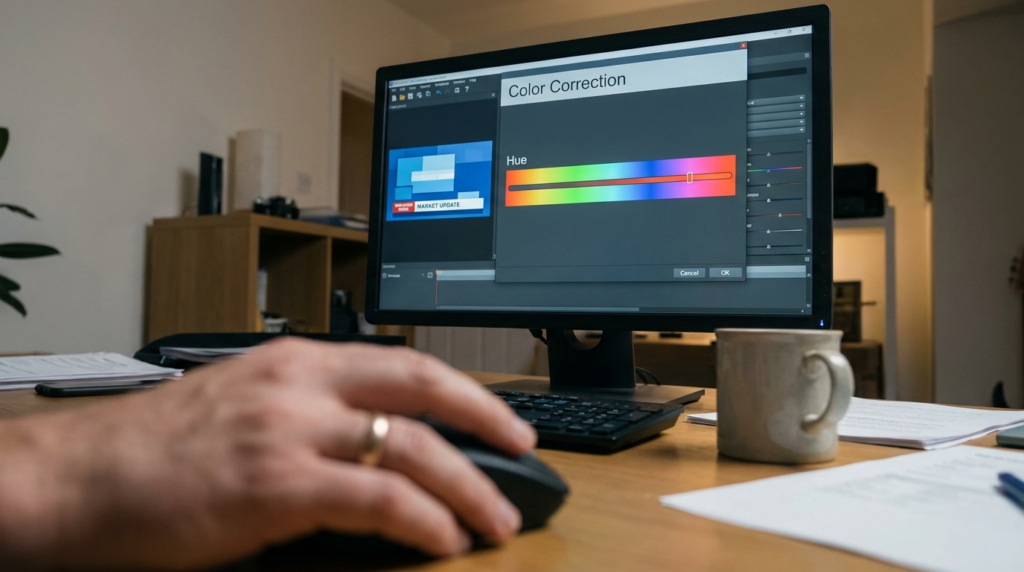
Many free assets come as pre-rendered video files. They might be the wrong color for your brand. You do not need After Effects to fix this. You can change colors directly inside OBS using built-in visual filters.
Step 1: Add the Media Source
Click the plus icon in your OBS sources dock. Select Media Source. Browse your computer for the downloaded WebM or MOV file. Make sure you check the box that says “Loop” if it is a background looping element. Check “Restart playback when source becomes active” for transitions or lower thirds so they trigger correctly every time you show them.
Step 2: Apply Color Correction
Right-click your new media source and select Filters. Click the plus icon under Effect Filters and choose Color Correction.
Step 3: Adjust the Hue Shift
Use the Hue Shift slider. Moving this slider changes the base color of the graphic. If your free lower third is blue, sliding the hue shift can turn it red, green, or purple. This keeps the original shadows, gradients, and highlights completely intact while matching your specific brand.
Editing MOGRT Files in Premiere Pro
When you find free MOGRT files, they make Premiere Pro editing incredibly fast. You bypass complex animation keyframes and just type your news copy.
Installing the Template
Open Premiere Pro. Go to the Window menu and make sure Essential Graphics is checked. At the bottom of the Essential Graphics panel, click the small plus icon to install a Motion Graphics Template. Find the file you downloaded from Motion Array.
Editing Text and Brand Colors
Drag the new template from the panel directly onto your timeline. Click on the clip in your timeline. The Essential Graphics panel will now show editable fields. You just type your headline over the default text. You can click the color boxes to enter your exact brand hex codes.
Broadcast-Safe Color Palettes for News
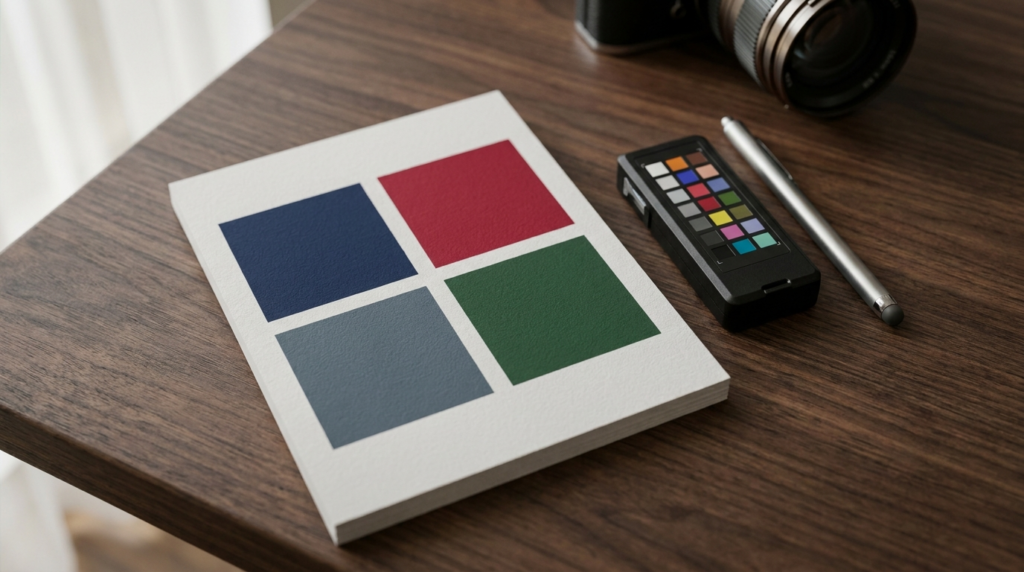
Color choice instantly separates a professional one-person newsroom from an amateur setup. Bright neon greens and pure reds look terrible on compressed web video. They bleed over text and make reading difficult. You must use broadcast-safe colors.
The Problem with High Saturation
Digital screens display pure red as hex #FF0000. If you use this for a lower third, the edges will look pixelated when uploaded to YouTube or streamed on Twitter. You need to lower the saturation and brightness to keep the edges sharp.
Standardizing Your Brand Profile
Pick one primary dark color and one high-contrast accent color. Traditional news uses deep blues and dark reds because they convey authority. Financial news leans toward dark greens and slate grays.
Professional News Brand Color Hex Codes
| News Niche | Primary Color | Accent Color | Background Tone |
| Hard News / Politics | Navy Blue (#0A192F) | Crimson (#900C3F) | Off-White (#F8F9FA) |
| Finance / Business | Slate Gray (#2F3640) | Forest Green (#1E5128) | Soft Silver (#DCDDE1) |
| Local Community | Royal Blue (#1746A2) | Goldenrod (#FFB100) | Pure White (#FFFFFF) |
| Tech / Science | Charcoal (#222831) | Cyan (#00ADB5) | Light Gray (#EEEEEE) |
Handling Alpha Channels and Transparency
When you download free broadcast graphics, they must have a transparent background. This is called an alpha channel. If your graphic has a solid black background, it covers your camera feed completely.
The WebM Format Advantage
Always look for WebM files when downloading free assets for OBS. WebM files support transparency and have tiny file sizes. They do not overload your CPU while streaming. MOV files with alpha channels work, but they are massive. A simple 5-second lower third in Apple ProRes 4444 format can exceed 500 megabytes.
Fixing the Black Screen Issue
If you import a graphic into OBS and see a black box instead of transparency, the file lacks an alpha channel. You can sometimes fix this with a filter. Right-click the source, go to Filters, and add a Color Key. Select black as the key color and adjust the similarity slider until the background disappears. This is not perfect, but it works for simple graphics.
Building Your OBS Scene Collection
You need to organize these free graphics logically. A one-person newsroom cannot hunt for files while live. You set up a specific scene collection just for your news show.
The A-Block and B-Block Structure
Create a scene called “Desk Camera.” Add your microphone, your camera, and your stationary logo bug. Create a second scene called “Over The Shoulder.” Put your camera on one side and a media source on the other. Use your free graphics to frame the over-the-shoulder image.
Organizing Stingers
A stinger is a full-screen graphic that covers the screen for a split second while you change scenes. Add your downloaded stinger transition by clicking the gear icon next to Scene Transitions. Select Stinger from the dropdown. Tell OBS exactly which frame covers the whole screen. This is the transition point where the cut happens.
Leveraging Free Fonts for News Broadcasts
Your free lower thirds are useless if you use a bad font. Highly stylized script fonts destroy your credibility. You need highly legible, sans-serif fonts that scale well on mobile screens. Google Fonts offers completely free, commercial-use typefaces that look identical to expensive broadcast fonts.
- Roboto Condensed: The absolute best choice for news tickers and scrolling text. It fits more words on the screen without looking cramped.
- Oswald: Perfect for massive, breaking news headlines. It is bold and commands attention.
- Open Sans: Great for secondary text and sub-headlines. It remains readable even at very small sizes.
- Montserrat: Use this for your channel logo or main title cards. It has a geometric, modern look.
Building a Free Scrolling News Ticker in OBS
You do not always need to download a video file for a news ticker. You can build a professional scrolling ticker using tools already built into OBS Studio. This saves CPU usage and allows you to update headlines on the fly.
Step 1: Create the Background Ribbon
In your OBS sources dock, click the plus icon and select Color Source. Name it “Ticker Background.” Set the color to your brand’s primary hex code. Set the width to 1920 and the height to 60. Position this color bar at the very bottom of your screen.
Step 2: Set Up the Text Source
Click the plus icon again and select Text (GDI+). Name it “Ticker Headlines.” Type your headlines into the text box. Separate each news item with a bullet point or a pipe symbol and add plenty of spaces between them.
Step 3: Apply the Scroll Filter
Right-click your text source and select Filters. Add a Scroll filter. Adjust the horizontal speed slider to the right. A speed of 40 or 50 is usually readable. If you make it too fast, your viewers cannot read it. Check the “Loop” box so the news constantly cycles.
Step 4: Add a Breaking News Box
A solid ticker needs a static anchor on the left side. Create another Color Source. Make it red and size it 250 by 60. Place it on the bottom left corner over the scrolling text. Add another text source that says “LATEST NEWS” and put it over the red box. Now you have a broadcast-tier ticker using zero downloaded assets.
Managing CPU Usage with Multiple Video Overlays
Running a one-person newsroom puts heavy stress on a single computer. You are recording, streaming, mixing audio, and playing multiple video graphics simultaneously. If you load ten high-resolution MOV files into OBS, your stream will drop frames.
Optimizing Media Sources
Always check the “Close file when inactive” box in the media source properties. If you have an animated lower third that only appears for ten seconds, OBS should not keep it loaded in memory for the whole hour. Checking this box forces OBS to drop the file from your RAM when you hide the layer.
Hardware Decoding
Look for the “Use hardware decoding when available” option in your media source settings. Enable it. This shifts the workload of playing the video graphic from your computer’s processor to your graphics card. It keeps your overall system cooler.
Routing Audio for Graphic Transitions
When you trigger a stinger transition to move from your camera to a pre-recorded news package, the graphic usually has a sound effect. You have to route this audio correctly so both you and the audience hear it.
Advanced Audio Properties
By default, OBS sends media source audio only to the stream. You will sit in silence while your audience hears the sound effect. Right-click anywhere in the Audio Mixer panel and open Advanced Audio Properties.
Audio Monitoring Settings
Find your stinger transition in the list. Change the Audio Monitoring dropdown from “Monitor Off” to “Monitor and Output.” Now, the sound effect plays in your headphones and goes out to the live broadcast. This gives you the audio cue that the graphic has finished playing on screen.