
You want to put a scrolling news ticker on a physical monitor right behind your broadcast chair. You don’t need a massive LED video wall or a complex hardware switcher. You just need a standard 27-inch monitor mounted on a stand, a browser-based graphic app running on your secondary display output, and specific camera focal settings to make the text sit naturally in the background blur.
When I set up my first one-person newsroom, I wasted weeks trying to key out lower thirds and background tickers using green screens in OBS. It always looked flat. The software artificial depth never quite matched the real lighting in the room. The day I put a physical 27-inch screen three feet behind me and looped a custom HTML scroll, the depth of my shot transformed. A physical screen interacts with the ambient light in your space. It casts a very slight glow. It forces your camera lens to process real, optical distance.
This guide outlines exactly how to build this setup using gear you likely already own and software that costs nothing.
The Geometry of Monitor Placement for Camera Depth
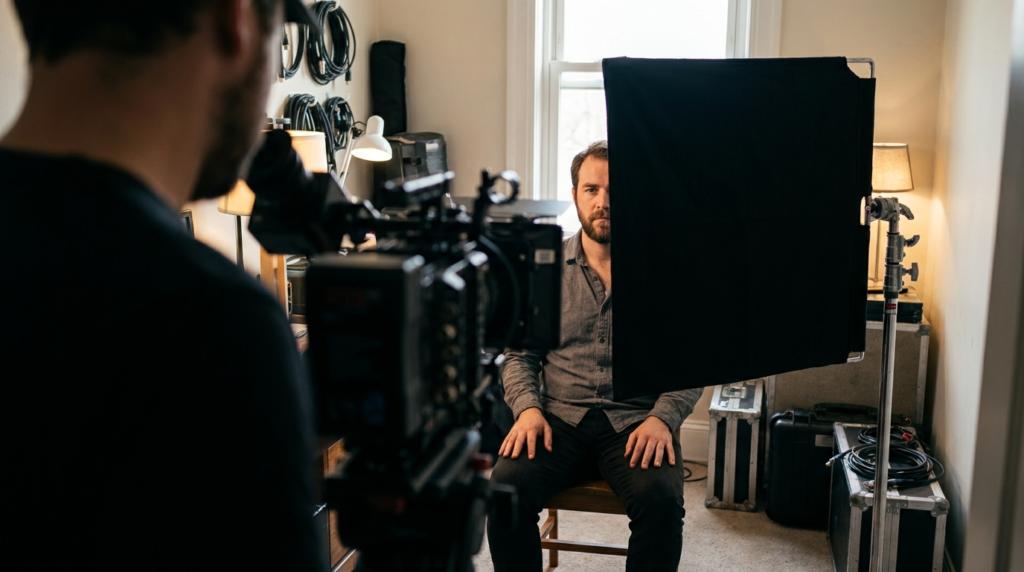
Where you put the screen dictates how professional the shot looks. If it sits flush against the back wall, it looks like a flat poster. If it creeps too close to your chair, the monitor backlight competes with your hair light and ruins your subject separation.
Calculating Distance Between Anchor and Screen
You need physical separation to let the lens do its job. Place the monitor between 36 and 48 inches directly behind the back of your chair. This specific distance creates a natural optical falloff for your camera lens. It puts the screen exactly where the depth of field naturally starts to roll off.
| Monitor Size | Ideal Distance Behind Chair | Recommended Ticker Font Size |
| 24-inch | 24 to 30 inches | 120px to 150px |
| 27-inch | 36 to 42 inches | 150px to 180px |
| 32-inch | 48 to 60 inches | 200px+ |
If you use a screen larger than 32 inches, you have to push it further back, or it will dominate the frame and act as a massive, distracting light source.
Angles to Avoid Glare and Reflections
Your key light will bounce right off the monitor glass and straight into your camera lens if you set the monitor perfectly straight. You have to manipulate the reflection angle.
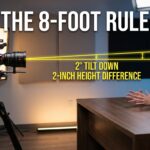
Angle the monitor 10 to 15 degrees off-axis from your camera lens. Then, tilt the screen slightly downward, perhaps 2 to 3 degrees. This geometry redirects the reflection of your main softbox toward the floor, keeping the screen colors rich, dark, and readable on camera.
Dialing in Focal Blur for Background Text
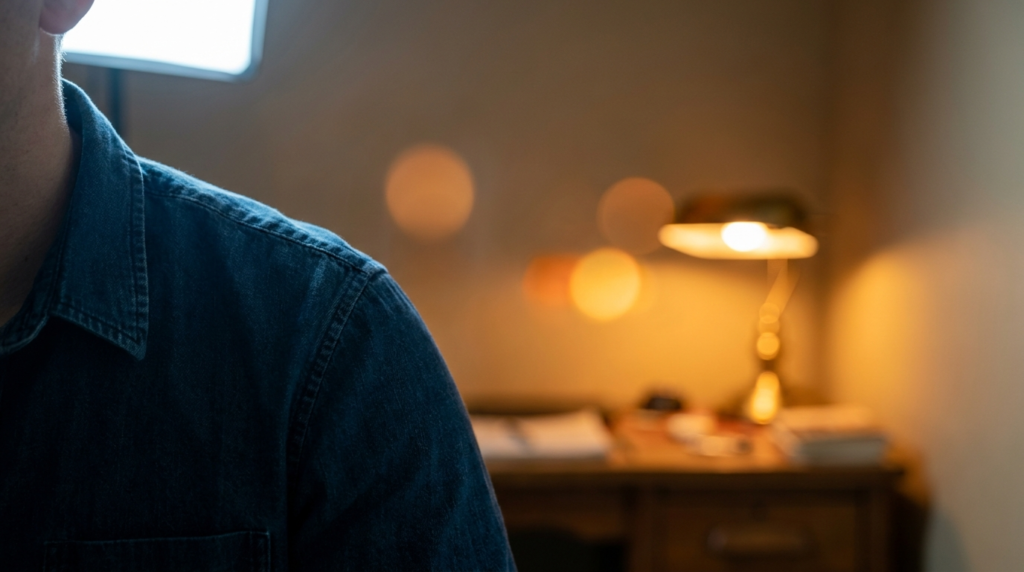
The secret to this entire setup is controlling depth of field. A monitor in sharp focus distracts the viewer. They will read the ticker instead of watching you speak. A monitor completely out of focus looks like a glowing smudge.
Setting the Right Camera Aperture
You need the text soft, but highly legible. If you shoot with a 35mm lens on a crop-sensor camera, an aperture of f/2.8 or f/3.2 is your sweet spot.
Drop your aperture to f/1.4, and the text turns into an unreadable, glowing line. Push the aperture to f/5.6, and the monitor bezel, the cables running down the stand, and the dust on the screen become sharply visible. You want optical separation where the text loses its hard edges but retains its shape.
- Use heavy sans-serif fonts. Roboto Black, Impact, or Montserrat work best. Thick font strokes survive the lens blur. Thin, serif fonts disappear entirely when out of focus.
- Set screen brightness strictly between 30% and 40%. A monitor at 100% brightness will blow out your background, create a halo effect around your shoulders, and confuse your camera’s auto white balance.
- Use dark backgrounds. A white ticker background acts as a secondary light source in your room. Use deep navy, charcoal, or dark red for the ticker bar, and bright white or yellow for the text.
Free Software to Run Browser-Based Tickers
You do not need specialized broadcast hardware or expensive character generators. Your computer’s second video output is enough. Extend your desktop in your operating system settings, drag a browser window over to the background monitor, and press F11 for full screen. The execution relies entirely on what you load into that browser.
Building a Local HTML Ticker File
This is the fastest, most reliable method. It requires zero internet connection and uses almost zero system resources. You build a local HTML file with CSS animations.
Do not use the old HTML <marquee> tag. It causes heavy stuttering on modern monitors, which looks terrible on camera. You need CSS transforms for a smooth, hardware-accelerated scroll.
Open a plain text editor. Create a basic HTML structure. Set the body background color to match your studio branding. Create a container div and set it to overflow: hidden. Inside that, create a text block and apply a CSS animation that moves the text from transform: translateX(100vw) to transform: translateX(-100vw).
Save the file as ticker.html. Double-click it so it opens in your browser. Drag it to your second monitor and hit F11. You now have a flawless, infinite scroll. If you want to change the news text, simply right-click the file, open it in your text editor, type the new headline, save it, and refresh the browser.
Managing Live Data with Singular.live
If you cover live events and need to update the text while you are actively speaking on camera, a static HTML file will not work. You cannot stop your broadcast to edit code.
Singular.live is a browser-based production platform used heavily by solo creators. You design a ticker in their web composer. You link that text layer to a Google Sheet. Singular generates a specific output URL.
You paste that URL into the browser on your background monitor. Now, you can open that Google Sheet on your phone or a secondary laptop sitting on your desk. When you type a new breaking headline into your phone, the ticker running on the monitor behind you updates in real-time. It requires zero physical interaction with the broadcasting computer.
| Ticker Method | Setup Time | Internet Required | Live Updating | Best For |
| Custom HTML | 10 minutes | No | No | Static show branding |
| Singular.live | 30 minutes | Yes | Yes (via Sheets) | Breaking news coverage |
| OBS Projector | 5 minutes | No | Yes (via OBS) | Single-PC streaming |
Pushing Tickers via OBS Fullscreen Projector
Sometimes you want to keep everything contained within OBS Studio. You can build the ticker directly in OBS and push it out to the physical monitor.
Create a brand new scene in OBS. Name it “Background Ticker.” Add a Text source. Type your news updates. Right-click the text source, select Filters, and apply the Scroll filter. Adjust the speed.
Now, right-click anywhere on the preview window for that specific scene. Select “Fullscreen Projector (Scene)” and choose your second monitor from the list. OBS will take that specific scene and throw it full-screen onto the monitor behind you, even while you use a completely different scene to record your main camera.
Preventing Interruptions During Live Broadcasts
Nothing ruins a live stream faster than a Windows update notification popping up on the monitor directly behind your head. The hardware must be locked down. It cannot behave like a normal computer workstation.
Disabling OS Sleep and Screensavers
Operating systems are designed to save power. You have to turn off every single feature that might interrupt a static screen.
- Turn off all screen sleep functions. Go to your power plan settings and set “Turn off display” to “Never.”
- Disable the taskbar on the second display. In Windows display settings, find the taskbar behaviors menu and uncheck “Show taskbar on all displays.” If the browser crashes, you want a blank desktop, not a visible start menu.
- Enable Focus Assist or Do Not Disturb. Turn this on before you hit record. An email notification sliding into the corner of your background screen destroys the illusion of a professional newsroom.
- Remove the mouse cursor. After you set the browser to full screen, move your mouse cursor back to your primary monitor. A white arrow hovering over your news ticker looks highly amateurish.
Controlling Monitor Spill Light
A monitor emits actual light. If your ticker graphic suddenly changes from a dark blue background to a bright yellow breaking news alert, the color of the light hitting the back of your head will instantly change. This is called spill light.
Keep your ticker background color consistent throughout the broadcast. If your channel branding utilizes dark gray and orange, make the ticker background dark gray and the text orange. Do not use white backgrounds for tickers. A white screen outputs too much raw light, washing out your camera sensor and ruining the contrast of your entire shot. Stick to dark, muted backgrounds with high-contrast text. This ensures the monitor acts as a prop, rather than an active light source competing with your studio gear.