
You look like a robot because your text is too wide and your camera is too close. When I first started filming news segments alone, my eyes darted back and forth like I was watching a high-speed tennis match. It’s the “teleprompter stare,” and it kills your authority instantly. To fix this, you have to stop treating the prompter like a book and start treating it like a focal point.
The secret to looking natural isn’t “better reading”—it’s better geometry. If your audience can tell you’re reading, you’ve already lost their trust. I’ve spent hundreds of hours staring into glass rigs and iPhones, and I’ve found that the difference between a “shifty-eyed amateur” and a “polished pro” comes down to three specific metrics: distance, font width, and vocal pacing.
The Geometry of Natural Eye Movement
Most solo creators put their tripod about three feet away. This is a mistake. At three feet, the physical distance your eyes travel to read a line of text is visible on camera. Even a small movement of your pupils is magnified when the lens is that close.
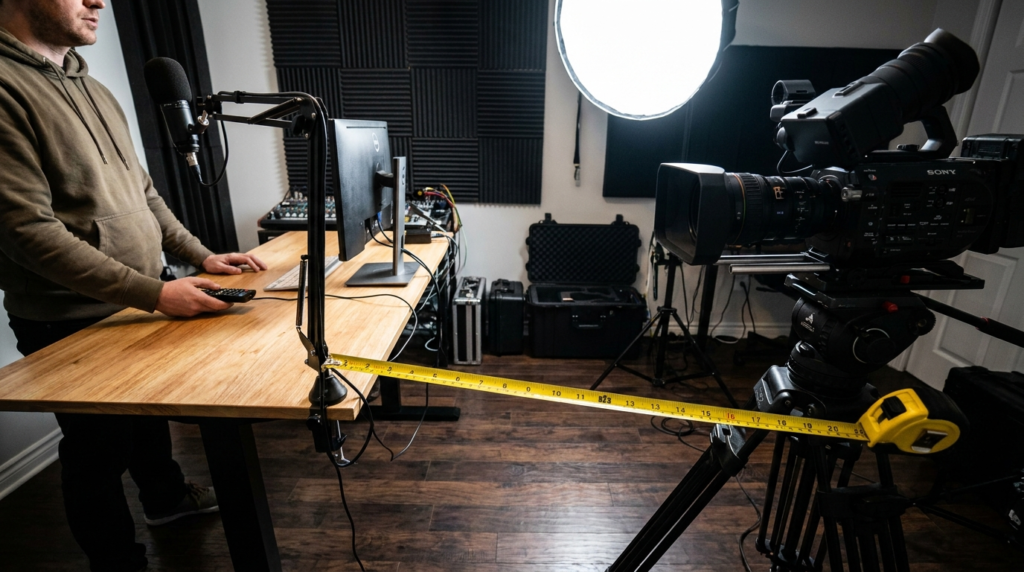
I’ve found that the “10-Foot Rule” is the baseline for professional-grade stealth. When you move the camera and the prompter to 10 feet or further away, the angle of your eye movement shrinks. At this distance, your pupils appear stationary to the viewer, even while you’re scanning the text.
The Distance to Focal Length Ratio
If you move the camera back, you’ll need a longer lens to keep a tight frame. A wide-angle lens (like a 16mm or 24mm) at 10 feet makes you look like you’re in a different ZIP code. I use a 50mm or 85mm lens on a Sony A7IV to pull the frame in tight while keeping the physical hardware far away.
| Distance from Lens | Recommended Focal Length | Eye Tracking Visibility |
| 2–3 Feet | 16mm–24mm | Very High (The “Shifty” Look) |
| 5–6 Feet | 35mm | Moderate |
| 8–10+ Feet | 50mm–85mm | Minimal to Invisible |
The Narrow-Margin Secret
Stop using the full width of your phone or tablet screen. This is the single biggest error I see in one-person newsrooms. If your text spans the entire 6-inch width of an iPhone, your eyes have to travel from the far left to the far right.
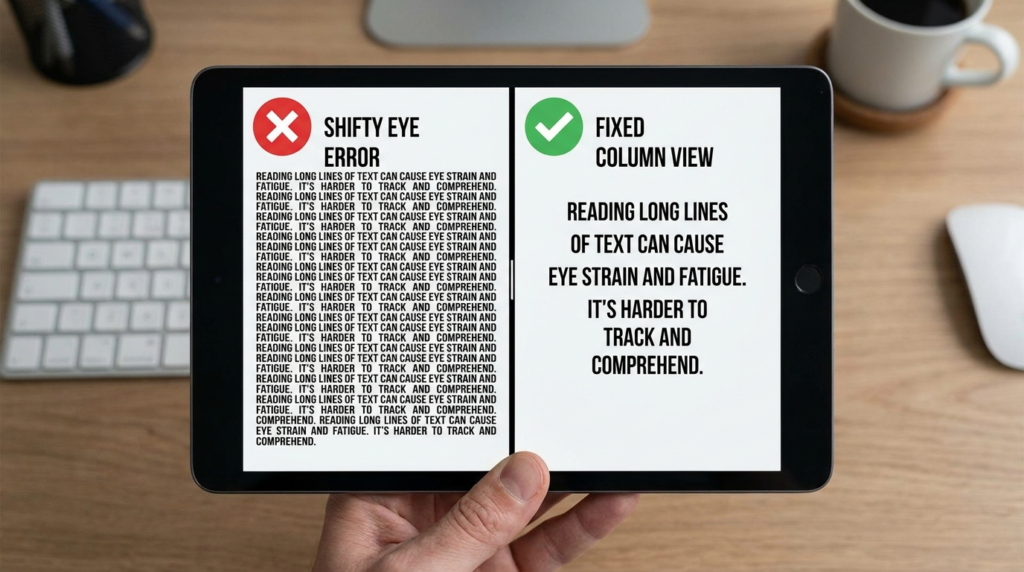
I set my margins to 30% of the screen width. This keeps the text in a narrow “column” directly in front of the lens. When the text is centered and narrow, your eyes stay fixed on the center of the lens. You aren’t “reading” anymore; you’re “absorbing” the words as they pass through your central vision.
How to Set Your Margins
- Open your app settings (like Teleprompter Premium or PromptSmart).
- Find the “Side Margins” or “Text Width” slider.
- Increase the margins until the text block is about 2 or 3 words wide.
- Keep the font size large enough to read from 10 feet, but small enough that you can see 3–4 lines at a time.
Speed Control: The WPM Formula for News
Manual scrolling is the enemy of a natural delivery. If the text moves too fast, you sound rushed. If it’s too slow, you have long, awkward pauses that make you look like you’ve forgotten your name.
In my experience, the sweet spot for news delivery is between 130 and 150 words per minute (WPM). However, that number changes based on your distance from the screen. The further away you are, the “slower” the text appears to move because it stays in your field of vision longer.
The Scroll Speed Baseline
I use a simple calculation to get my starting point. For every foot you move back from the camera, you might need to increase your font size by 10%. As the font gets bigger, the scroll speed must increase to keep the same verbal pace.
- Start at 140 WPM: This is the average speed of a professional news anchor.
- Adjust for “Air”: Add pauses in your script using ellipses (…) or paragraph breaks.
- The Ad-Lib Test: If you can’t stop to make a hand gesture without the text flying off the screen, your speed is too high.
Professional App Comparison for Solo Newsrooms
Not all apps are built for the news format. Some are designed for long speeches, while others are for quick TikTok clips. I’ve tested the top contenders specifically for the “one-person newsroom” workflow, focusing on how they handle eye-line and pacing.
PromptSmart: The Gold Standard for “Solo”
The standout feature here is “VoiceTrack.” It uses the microphone on your phone or a connected iPad to listen to your voice. The text only moves when you speak. If you stop to take a sip of water or go off-script to explain a point, the text waits for you.
This is massive for looking natural. You don’t have to chase the text. You can breathe, pause for emphasis, and act like a human. In my tests, PromptSmart has a 95% accuracy rate in noisy rooms, provided you use a lavalier mic.
Teleprompter Premium: The Customization King
If you prefer a constant scroll, this app offers the best control over the visual “mask.” You can put a colored highlight over the active line. I set this highlight to be very faint and placed it exactly at the level of the camera lens. This ensures I’m always looking directly at the glass, not slightly above or below it.
Speeko: The Pacing Coach
Speeko is less of a traditional prompter and more of a speaking coach. It’s great if you struggle with “filler words” (like “um” and “uh”). It gives you a breakdown of your pace after you finish. While I don’t use it for live news hits, it’s a great training tool to find your natural WPM before you go live.
| Feature | PromptSmart | Teleprompter Premium | Speeko |
| Scroll Method | Voice-Activated | Manual/Timed | Timed |
| Best For | Ad-libbing & Natural Pauses | High-precision visual layout | Pacing practice |
| Price Point | Subscription | One-time/Subscription | Subscription |
| Stealth Level | High (follows your lead) | Medium (requires practice) | Low (focuses on data) |
Physical Acting: The “Think-Pause” Method
The biggest giveaway that someone is using a prompter isn’t their eyes—it’s their lack of blinking and facial movement. When we read, we tend to freeze our faces. When we think and speak naturally, our eyes move, we blink, and we look away occasionally.
To look like a real person, you have to build “humanity” into your script. I actually write physical cues into my teleprompter scripts.
Writing for the Eyes
- [BLINK]: I put this at the end of a heavy sentence. It forces me to break the “stare.”
- [LOOK AWAY]: I use this when transitioning to a new topic. I’ll look down at my “notes” (even if there are none) or slightly to the side as if I’m recalling a fact.
- [SMILE/PAUSE]: Adding these brackets helps me remember that I’m talking to a person, not a piece of glass.
A natural speaker’s eyes aren’t always locked on their audience. We look up when we’re thinking of a word or down when we’re being serious. By looking away from the lens for 1 second at the start of a new paragraph, you “reset” the audience’s perception. It makes it look like you’re thinking of what to say next, which is the hallmark of an expert.
Hardware Setup for Maximum Stealth
If you’re using a phone-based prompter (like a Desview or Neewer rig), the glass quality matters. Cheap beamsplitter glass has a “tint” that can make your video look muddy. More importantly, poor glass causes “ghosting,” where you see a double image of the text. This makes you squint, and squinting is a dead giveaway that you’re reading.
The “Mirror Check”
Before you hit record, look at your reflection in the prompter glass. If you can see your own eyes clearly, the text is too bright. You want the text brightness to be at the absolute minimum level required for you to read it.
If the screen is too bright, it reflects back onto your face or creates a “glow” in your pupils. I keep my iPad or phone brightness at around 40%. This is enough to see the text but low enough to prevent “screen-glow” eyes.
Use a Remote
Never walk up to the camera to hit “start” on your prompter. This ruins your framing and your mental state. I use a small Bluetooth remote or even a secondary phone to trigger the scroll. This allows me to sit back, get comfortable, and start the text only when I’m in “character.”
Scripting for the Ear, Not the Eye
We write differently than we speak. If you copy-paste a press release or a blog post into your prompter, you’ll sound like a textbook. Long, complex sentences are hard to read and even harder to say without losing your breath.
I follow a “One Breath” rule. If I can’t say a sentence comfortably in one breath, it’s too long. I break it into two. I also use contractions (e.g., “don’t” instead of “do not”) and informal transitions.
- Written: “The company has decided to terminate the project.”
- Spoken: “So, the company’s killing the project.”
The second version is much easier to read naturally because it matches the cadence of real conversation. When you use conversational language, you don’t have to “perform” as much. The words flow because that’s how your brain actually talks.
The “Over-the-Shoulder” Perspective
Sometimes, the best way to use a prompter is to not look at it at all. In “sidebar” news segments, I often place the prompter slightly off-camera. Instead of looking into the lens, I look at the prompter which is positioned where an interviewer would be sitting.
This is the “Documentary Style.” It feels more intimate and less like a formal broadcast. Since you aren’t looking at the lens, the viewer doesn’t expect perfect eye contact. This completely removes the pressure of “hiding” the eye movement because the movement is now part of the natural interview aesthetic.
Fine-Tuning Your Setup
After you’ve set your 10-foot distance and narrowed your margins, do a 30-second test record. Watch it back without sound. If you can tell what you’re doing just by looking at your eyes, check these three things:
- Is your eyeline too high? The text should be centered over the lens. If it’s too high, you look like you’re staring at the ceiling.
- Are you “head-nodding”? Some people move their whole head up and down as the text scrolls. Keep your chin still and let your eyes (or the scroll) do the work.
- Are you “Scanning”? If you see your eyes “zip” back to the left at the start of every new line, your margins are still too wide. Narrow them more.
Using a teleprompter is a skill that requires muscle memory. I spent my first few months feeling like a fraud, but once I dialed in the 10-foot distance and the 30% margin rule, the technology disappeared. You want the prompter to be a safety net, not a script. Learn the main points of your story, and use the text only to keep your pacing on track. When the prompter becomes invisible to you, it will become invisible to your audience.